
Report "Current Project Tasks" in MS Project Pro
Contents:
- Using the Current Tasks report in MS Project Pro
- Set up the Current Tasks report in MS Project Pro
- Chat
Using the Current Tasks report in MS Project Pro

The Current Tasks report is used by the project team to analyze current project tasks. When generating the report, the current project tasks and the Status Report Date parameter are used. The Status Report Date field specifies the end of the current period. When running the report, the system column “Status” is used. In the “Status” column, the system indicates the assessment of the completion of each project task. The list of values includes:
- Complete – tasks that have a 100% value in the “% complete” field.
- Late – tasks that should already be implemented either completely or partially. The value is calculated based on the task assignment date and the project status report date.
- On schedule – tasks that are currently being implemented without deviations
- Future Task – tasks whose start date is greater than the project status report date.
Rules for checking the quality of data completion.
- Block “Complete” - all tasks must have values of “100” in the columns “% due” and “% by volume”. Otherwise, the tasks are not completed, check that they are filled out correctly.
- Blocks “Late” and “On schedule” - for all tasks the value “100” should not be set in the “% by volume” field, otherwise the task must be completed.
- Block “Future Task” - all tasks of the block must have a value of “0” in the columns “% deadlines” and “% by volume”.
Rules for working with reports:
- The project manager, together with the team, analyzes the “Delay” block and clarifies the new deadlines for completing tasks.
- The project manager, together with the team, analyzes the “On schedule” block and clarifies the possibility of speeding up the work.
- The project manager, together with the team, analyzes the “Future task” block and clarifies the possibility of starting to complete the described tasks earlier.
Set up the Current Tasks report in MS Project Pro
How to get the Current Tasks report in MS Project Pro
- Register or log in to the site.
- Make a payment.
- Download the schedule with the report.
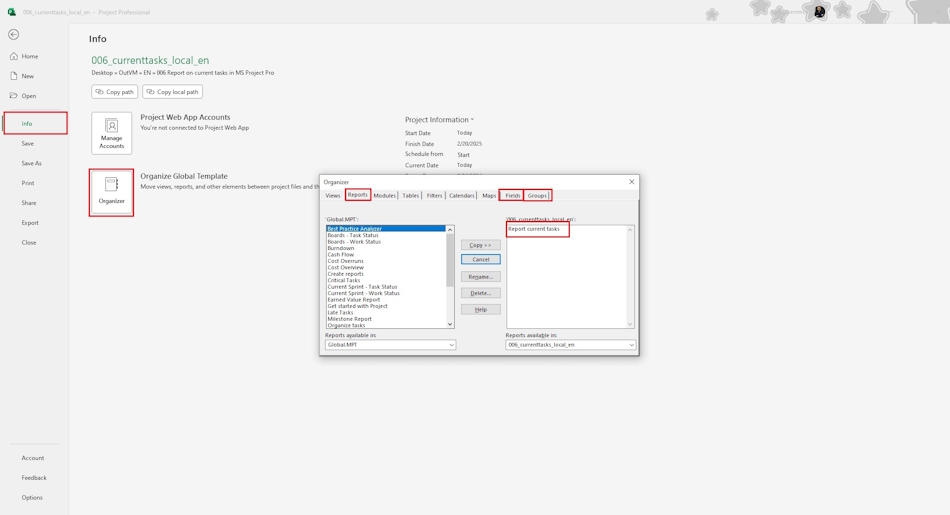
Steps for setting up the Current Tasks report in MS Project Pro
- Open the schedule with the report.
- Go to the “Organizer” section
- Copy the “Responsible” and “% by Volume” columns.
- Fill in the list of responsible persons in the “Responsible” column.
- Copy the “Current Tasks” report to your project or “Global.mpt” project
- Copy the “Status and Responsible” grouping
- Open the report and test the report.
#projectmanagment, #projectscopemanagement, #monitoringandcontrollingprocess, #msprojectpro, #oberemokii, #documents
Documents
Documant title: Current project tasks report in MS Project Pro
Price: € 10 / 520 UAH
Description: The Current Tasks report is used by the project team to analyze current project tasks. When generating the report, the current project tasks and the Status Date parameter are used.

Author: Ivan Oberemok
