
Adding a summary task in ms project online
Contents:
- Adding new summary tasks to the plan in MS Project Server
- Showing a summary task in MS Project Server
- Setting project outline in MS Project Server
- Chat
Adding new summary tasks to the plan in MS Project Server
Steps to add a new summary tasks to the plan in MS Project Server:
- Open a project plan. Click the "Projects" item in the left menu and click the project name.
- Click the "Schedule" item in the left menu.
- Click the "TASK" tub in the top menu.
- Click the "Edit" button in the "Project" block.
- Click the "In Browser" item.
- You can add new tasks at the bottom of the project.
- Select the task.
- Click the "Insert" button in the "Editing" block.
- Click the "Save" button in the "Project" block.
- If you want publish a plan, click the "Publish" button in the "Project" block.
- Click the "Close" button in the "Project" block.
- Select the "Check it in" box and click the "Ok" button.

Showing a summary task in MS Project Server
Steps to show a summary task in MS Project Server:
- Open a project plan. Click the "Projects" item in the left menu and click the project name.
- Click the "Schedule" item in the left menu.
- Click the "OPTIONS" tub in the top menu.
- Click the "Project Summary Task" box in the "Show/Hide" block.
- You can show time in date fields, click the "Time with Date" box.
- Click the "Close" button in the "Project" block.
- Select the "Check it in" box and click the "Ok" button.

Setting project outline in MS Project Server
Steps to set up a project outline in MS Project Server:
- Open a project plan. Click the "Projects" item in the left menu and click the project name.
- Click the "Schedule" item in the left menu.
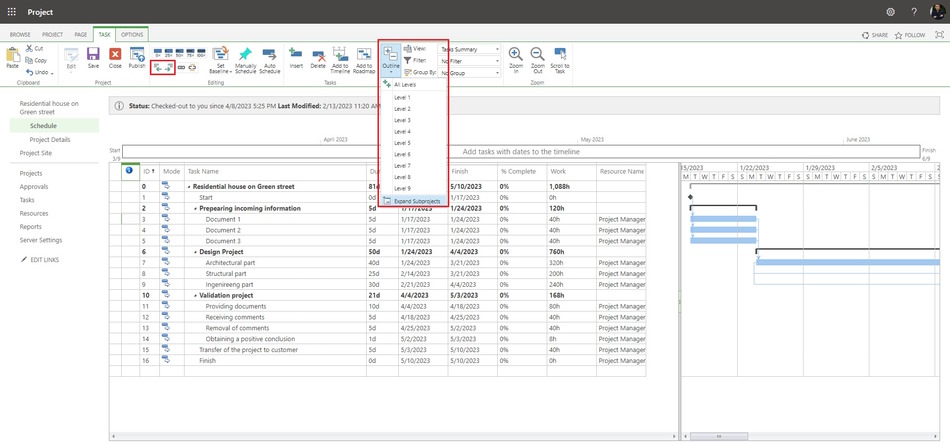
- Select tasks and click the "Indent" button or you can click the "Outdent" button in the "Editing" block.
- You can open or close the outline, click the triangle near the task name.
- You can open or close the outline for all tasks. Click the "Outline" button and select the outline level.
- Click the "Close" button in the "Project" block.
- Select the "Check it in" box and click the "Ok" button.
#projectmanagment, #projectschedulemanagement, #planningprocess, #msprojectserver, #oberemokii

Author: Ivan Oberemok
