
Outlines in MS Project Pro
Contents:
- Creating the outline in the plan in MS Project Pro
- Adding summary tasks to the plan in MS Project Pro
- Chat
Creating summary tasks to the plan in MS Project Pro
The steps of adding a new summary task:
- Select tasks that should be subtasks.
- Click the item "Task" on the top menu.
- Click the button "Indent Task" in the block "Schedule".
The steps to show the project summary task and the outline number.
- Click the "Gantt Chart Format" item in the top menu
- Click the "Project Summary Task" box.
- Click the "Outline Number" box.
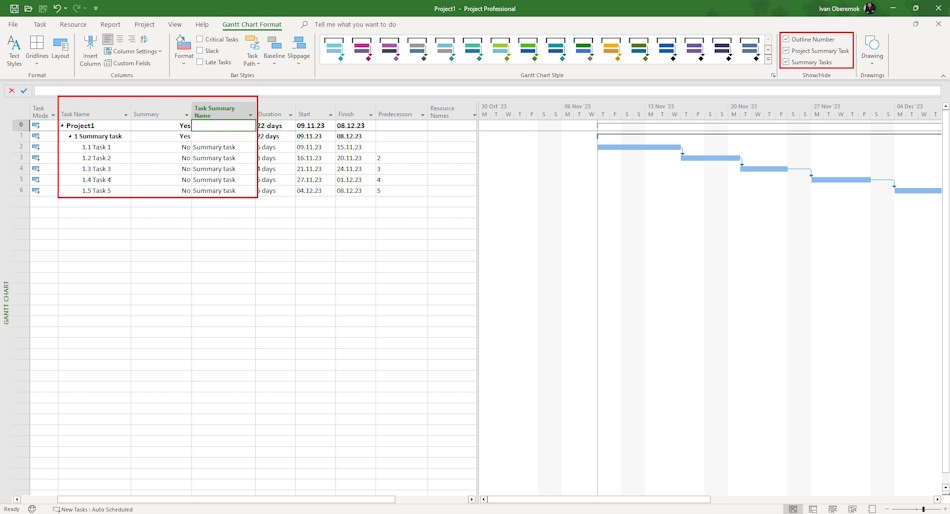
Adding summary tasks to the plan in MS Project Pro
You can create a summary task in MS Project Pro. A summary task can be added anywhere in the plan.
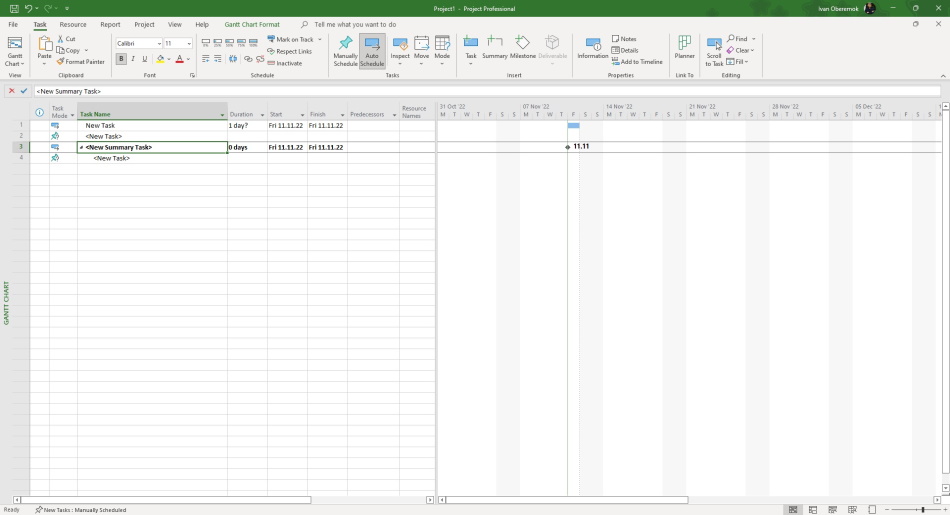
First tool. The steps of adding a new summary task:
- Open the "Gantt Chart" view in your plan.
- Click the item "Task" on the top menu.
- Click the item "Summery" on the block "Insert".
#projectmanagment, #projectscopemanagement, #planningprocess, #msprojectpro, #oberemokii

Author: Ivan Oberemok
