
Fixing project issues in plan in MS Project Server
Contents:
- Fixing project issues in the enterprise custom column in MS Project Server
- Adding an enterprise custom project issues column to a view in MS Project Server
- Chat
Fixing project issues in the enterprise custom column in MS Project Server
To use issues information in reports for analysis, you can add a custom column. In this column, the project manager will record the issues of the task. The system can fix already entered values and prompt them when entering in the form of a drop-down list.
Steps to create a lookup table for enterprise custom column in MS Project Server:
- Click the "Server Settings" item in the left menu.
- Click the "Enterprise Custom Fields and Lookup Tables" item in the "Enterprise Data" block.
- Click the "New Lookup Table" button.
- Enter the lookup table name in the "Name" field. For example "Issues list".
- Select the "Text" in the "Type" field.
- Add vlues to the lookup table.
- To save click the "Save" button.

Steps to create a enterprise custom field with a lookup table in MS Project Server:
- Click the "Server Settings" item in the left menu.
- Click the "Enterprise Custom Fields and Lookup Tables" item in the "Enterprise Data" block.
- Click the "New Custom Field" button.
- Enter the field name in the "Name" field. For xample "Issues".
- Select the "Task" in the "Entity" field.
- Select the "Taxt" in the "Type" field.
- Select the "Lookup Table" in the "Custom Attributes" block.
- Select the "Issues list" lookup table.
- Click the "Allow multiple values to be selected from lookup table" box.
- To save click the "Save" button.

Adding the enterprise custom project issues column to a view in MS Project Server
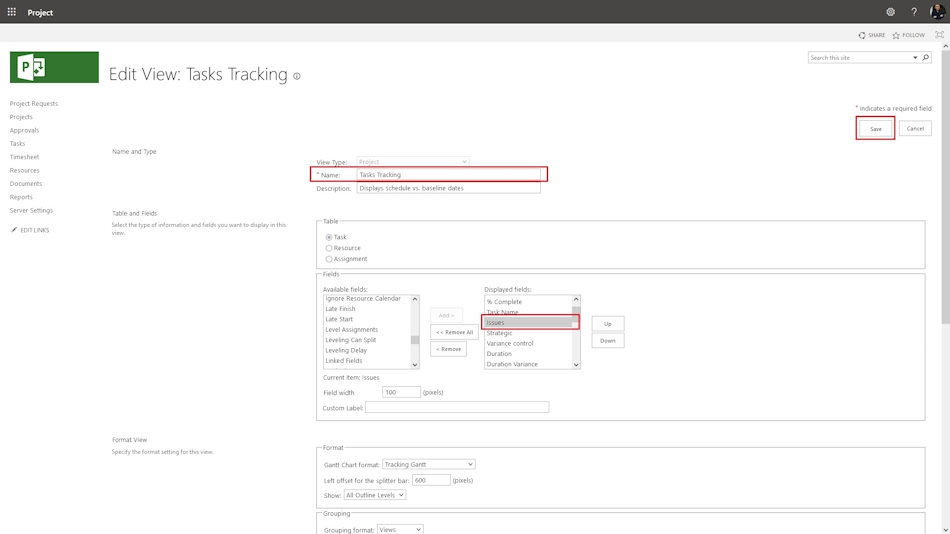
Steps to add the enterprise custom project issues column to a view in MS Project Server:
- Click the "Server Settings" item in the left menu.
- Click the "Manage Views" item in the "Look and Feel" block.
- Select the "Tasks Tracking" view.
- Select the "Issue" field and click the "Add >>" button.
Steps to use the enterprise custom project issues column to a view in MS Project Server:
- Click the "Projects" item in the left menu.
- Click the "TASK" item in the top menu.
- Click "Edit" botton and click the "In Browser" item.
- Click the cell in the "Issues" column.
- Choose issues in the list and click the "Ok" button.
- To save and publish, click the "Publish" button.
- Click the "Close" button.

#projectmanagment, #projectriskmanagement, #monitoringandcontrollingprocess, #msprojectserver, #oberemokii

Author: Ivan Oberemok
