
Setting up links between tasks in MS Planner
Contents:
- Setting up links between tasks in MS Planner
- Establishing connections in the “Timeline” view in MS Planner
- Chat
Setting up links between tasks in MS Planner
You can establish links between tasks in two views: “Grid” and “Timeline.”
In MS Planner, you can establish links between tasks, but you cannot establish links between summary tasks.
To establish links between tasks in the Grid view:
- Add the Dependency and Dependent Tasks columns.
- Enter the numbers of the dependent tasks in these columns. In the Dependency column, enter the predecessor, and in the Dependent Tasks column, enter the number of the successor task.
In MS Planner, you can set the following types of relationships:
- Finish-to-Start. After the predecessor tasks are completed, the successor task begins.
- Start-to-Start. The successor task starts at the same time as the predecessor task.
- Finish-to-Finish. The successor task ends at the same time as the predecessor task.
- Start-to-Finish. The predecessor must be completed before the successor can start.

Establishing connections in the “Timeline” view in MS Planner
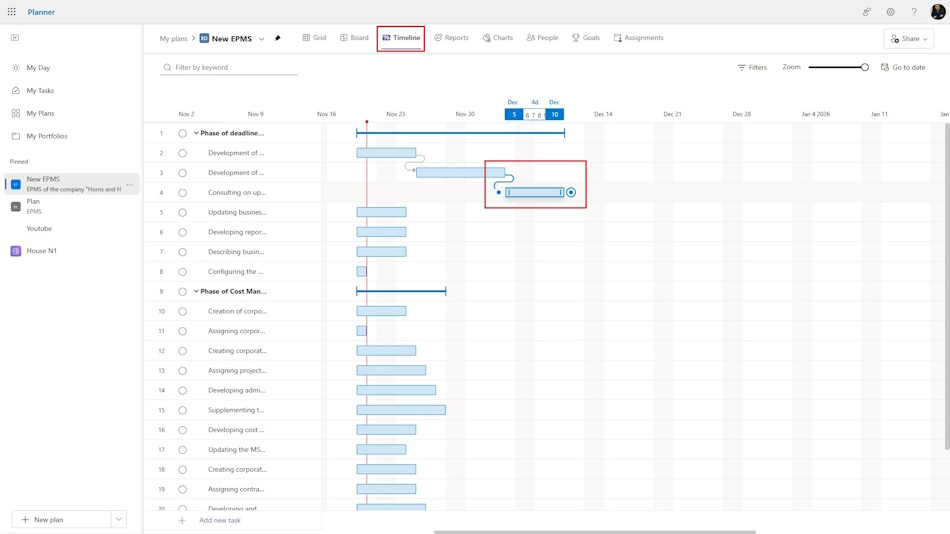
To establish relationships between tasks in the Timeline view, place the cursor at the end of a task and drag it to the beginning of another task.
#projectmanagment, #projectschedulemanagement, #oberemokii, #msplanner


Author: Ivan Oberemok
