
Portfolio project currencies in MS Project Server
Contents:
Setting currencies in MS Project Server
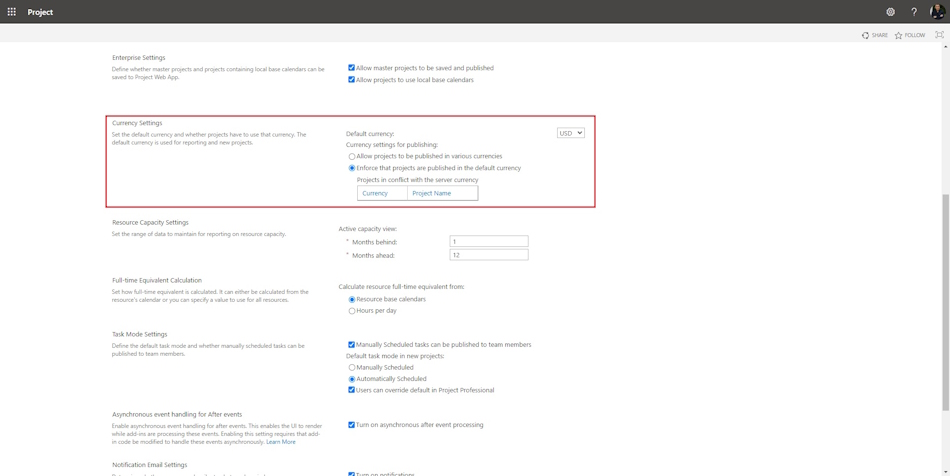
Steps to set up settings currencies in MS Project Server:
- Click the "Server Settings" item in the left menu.
- Click the "Operational Policies" link in the "Additional Server Settings" block.
- Set up a currency for all projects in the "Default currency" field.
- If project managers must publish their project in the default currency, check the "Enforce that projects are published in the default currency" box.
- You can allow projects to be published in various currencies, click the "Allow projects to be published in various currencies" box.
Setting currencies in the Enterprise Global
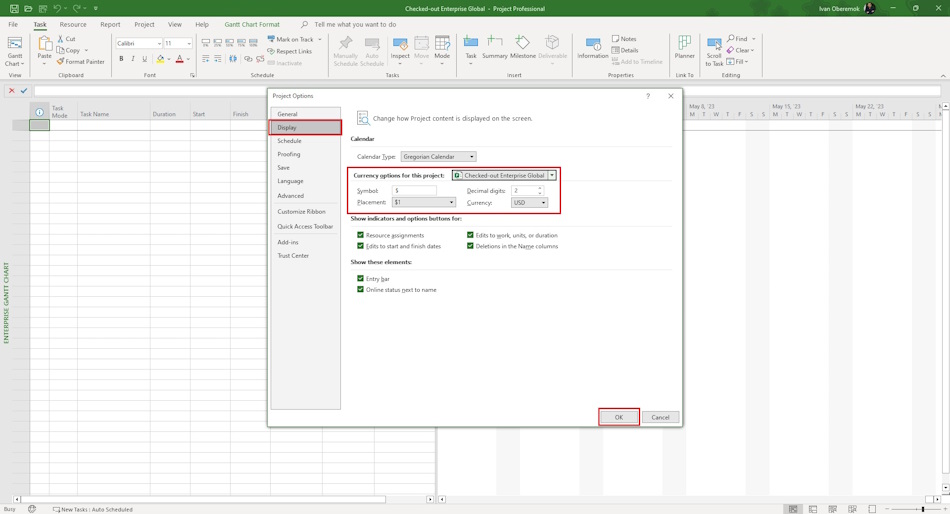
Steps to set up currencies in the Enterprise Global:
- Open MS Project Pro.
- Click the "File" item.
- Click the "Info" item in the left menu.
- Click the "Organizer" button and click the "Open Enterprise Global" item.
- Click the "File" item.
- Click the "Options" item.
- Click the "Display" item in the left menu in the "Project Options" window.
- You can edit type currency in the "Currency" field.
- You can edit decimal digits currency in the "Decimal digits:" field.
- You can edit currency symbol in the "Symbol:" field.
- You can edit currency symbol placement in the "Placement:" field.
- Click the "Ok" button.
#projectportfoliomanagement, #projectcostmanagement, #initiatingprocess, #msprojectserver, #oberemokii

Author: Ivan Oberemok
