
Monitoring contractors in MS Project Server
Contents:
- Creating a contractor monitoring view in MS Project Server
- Monitoring contractors in MS Project Server
- Chat
Creating a contractor monitoring view in MS Project Server
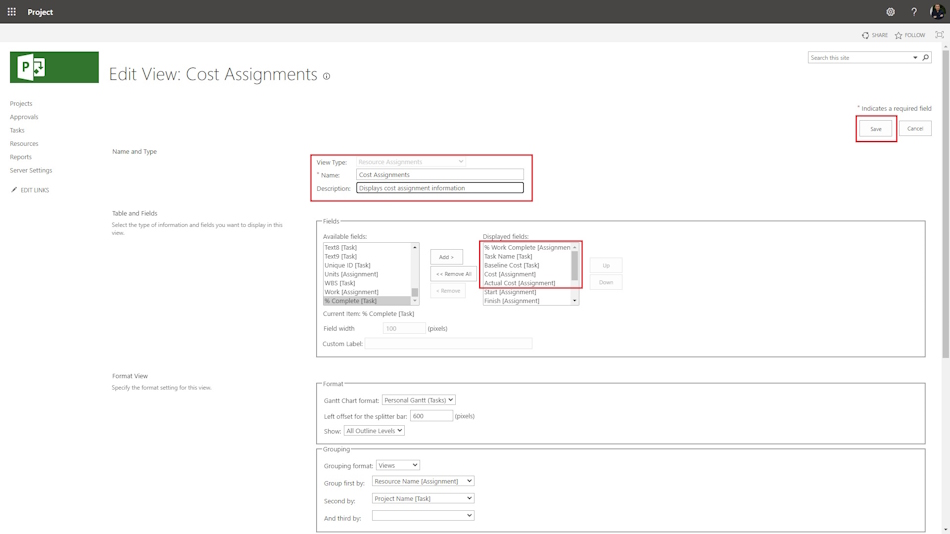
Steps to create a contractor monitoring view in MS Project Server:
- Click the "Server Settings" item in the left menu.
- Click the "Manage Views" item in the "Look and Feel" block.
- To create the custom view, click the "New View" button.
- Select the "Resource Assignments" in the "View Type:" field.
- Enter the view name in the "Name" field. For example "Cost Assignments".
- Enter the view description in the "Description" field.
- Selcet the table type in the "Table" block. For example:
- "% Work Complete".
- 'Task Name".
- "Baseline Cost".
- "Cost".
- "Active Cost".
- Select a grant chart in the "Gantt Chart format" field.
- Set the left offset in the "Left offset for the splitter bar:" field.
- Set the "All Outline" in the "Show" field.
- Set the grouping format in the "Grouping" block. Set fields: "Resource Name" and "Project name"
- To save click the "Save" button.
Monitoring contractors in MS Project Server
Steps to monitor contractors in MS Project Server
- Open MS Project Server.
- Click the "Resources" item in left menu.
- Select contractors.
- Click the "RESOURCES" item in the top menu.
- Click the "Resource Assignments" item in the "Navigate" block.
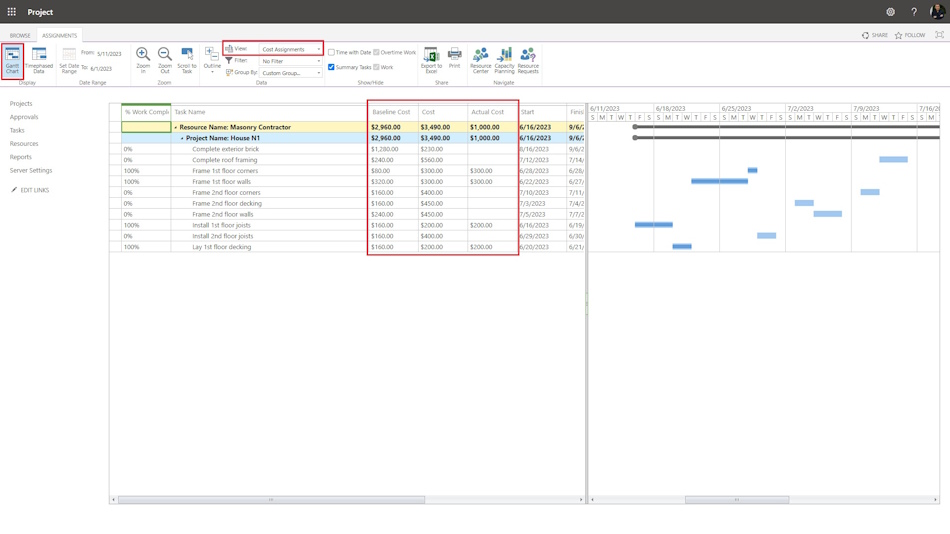
- Click the "Gantt Chart" button.
- Choose the "Cost Assignments" in the "View" field.
- To change zoom Gantt chart click the "Zoom In" button or the "Zoom Out" button.
- To show the task bar, select the task and click the "Scroll to Task" button in the "Zoom" block.
- To change the level click the "Outline" button in the "Data" block.
- To set up the filter in the "Filter:" field.
- To set up the group in the "Group:" field.
- To show summary tasks click the "Summary Tasks" box.
- To show the time with date click the "Time and Date" box.
- To export date to Excel click the "Export to Excel" button.
- To print date click the "Print" button.
- To return click the "Resource Assignments" button in the "Navigate" block.
#projectportfoliomanagement, #projectprocurementmanagement, #monitoringandcontrollingprocess, #msprojectserver, #oberemokii

Author: Ivan Oberemok
