
Creating a project site template in MS Project Server
Contents:
- Creating a site template in MS Project Server
- Seting a project site template in MS Project Server
- Chat
Creating a site template in MS Project Server
Steps to create a site template in MS Project Server:
- Open MS Project Server.
- Click the "Project" item in the left menu.
- Click the project name with the best site.
- Click the "Project Site" item in the left menu.
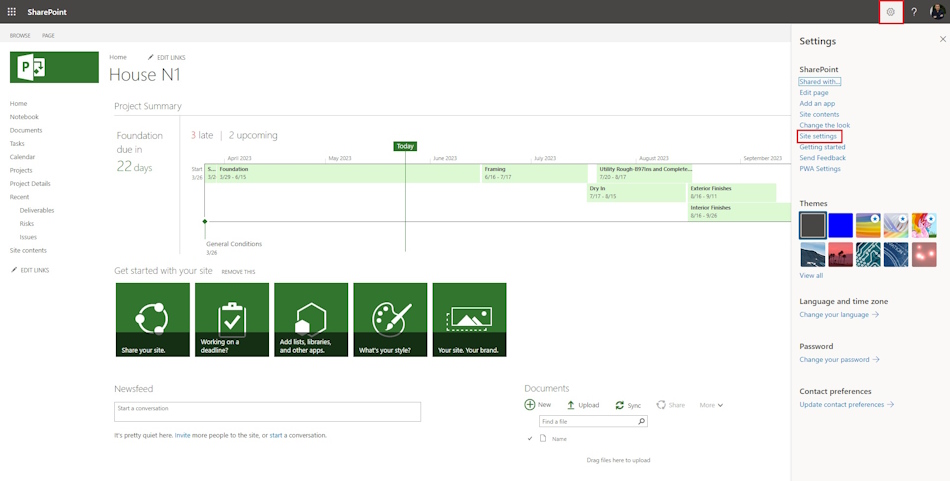
7. Set up a site. Set up site apps.
8. Click the "Setting" button.
9. Click the "Site settings" link.
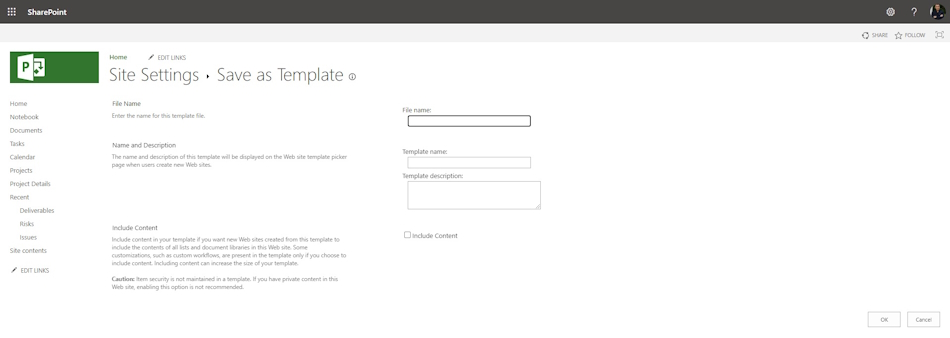
10. Click the "Save site as template" link in the "Site Actions" block.
11. Enter the file name of site template in the "File name:" field.
12. Enter the site template name in the "Template name:" field.
13. Enter the site template description in the "Template description:" field.
14. If you want to add site content to the site template, click the "Include Content" box.
15. To create a template click the "Ok" button.
Seting a project site template in MS Project Server
Steps to set a project site template in MS Project Server
- Click the "Server Settings" item in the left menu.
- Click the "Enterprise Project Type" link in the "Workflow and Project Detail Pages" block.
- Select the project type and click project name.
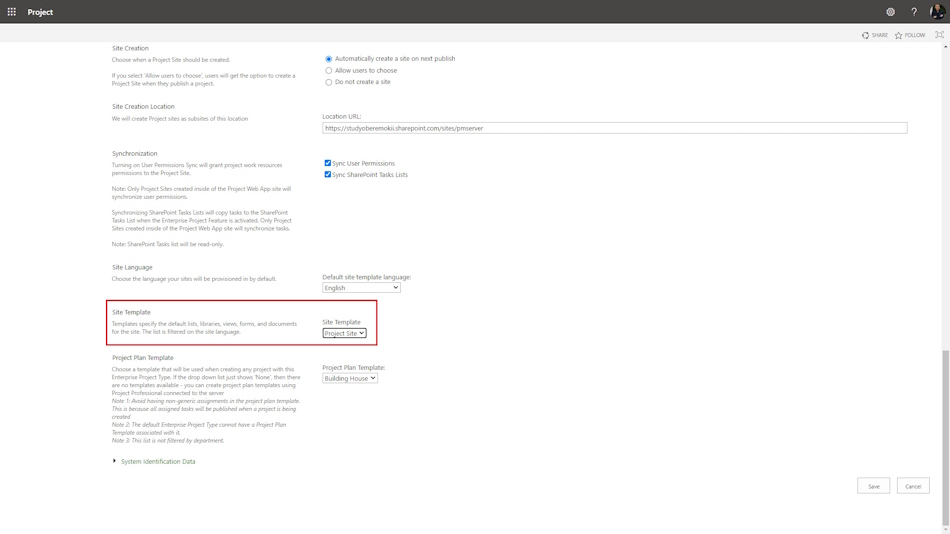
- Choose the "Site Template" field in the "Site Template" block.
- Click the "Save" button.
#projectportfoliomanagement, #projectintegrationmanagement, #initiatingprocess, #msprojectserver, #oberemokii

Author: Ivan Oberemok
