
Calculation "Cost % complete" in MS Server
Contents:
- Creating the custom column "Cost % complete" in MS Server
- Using the custom column "Cost % complete" in MS Server
- Chat
Creating the custom column "Cost % complete" in MS Server
You can control the progress of project tasks by tracking project costs. This is a simpler implementation of the earned value method. You don't need to set the baseline or set the percent of complete. The method uses the sum of planned and actual costs. You create a custom column in which you calculate the earned value percentage. You can compare this column with other progress control columns.
Steps to create the custom column "Cost % complete" in MS Server:
- Open MS Project Server
- Click the "Server Settings" item in the left menu.
- Click the "Enterprise Custom Fields and Lookup Tables" item in the "Enterprise Data" block.
- To create the custom fields, click the "New Field" button.
- Enter the "Cost % complete" in the "Name" field.
- Enter the field description in the "Description" field.
- Select the "Task" in the "Entity" field.
- Select the "Numeric" in the "Type" field.
- Select the Formula in the "Custom Attributes" block.
- Enter the formula: "IIf([Cost] = 0, 0, [Actual Cost] * 100 / [Cost])".
- Click the "Use formula" box in the "Calculation for Summary Rows" block.
- To save click the "Save" button.

Using the custom column "Cost % complete" in MS Server
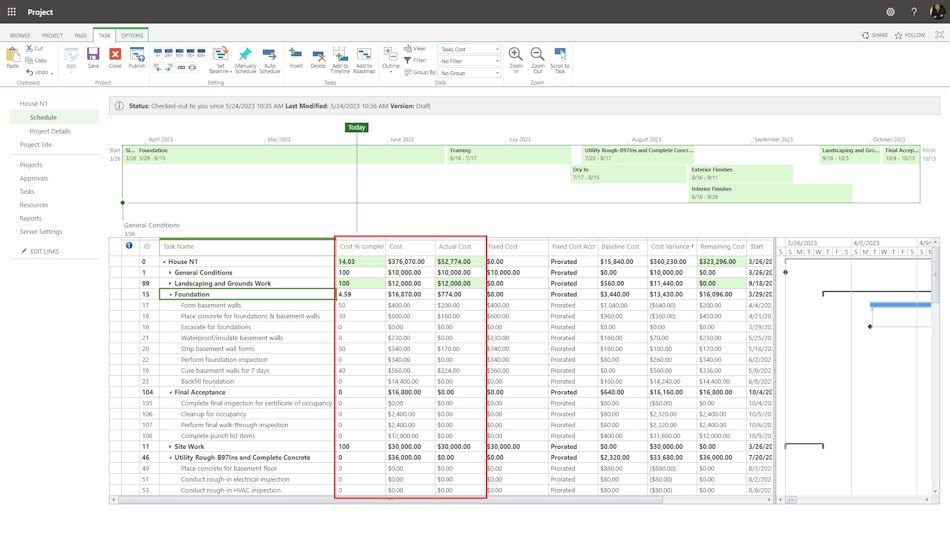
Steps to add custom columns: "Cost % complete", "Cost" and "Active cost" in MS Project Server:
- Click the "Server Settings" item in the left menu.
- Click the "Manage Views" item in the "Look and Feel" block.
- Click the "Tasks Cost" view.
- Add columns: "Cost % complete", "Cost" and "Active cost" in the "Fields" block.
- To save click the "Save" button.
Steps to use custom columns: "Cost % complete", "Cost" and "Active cost" in MS Project Server:
- Click the "Projects" item in the left menu.
- Select the project and click the project name.
- Click the "TASK" item in the top menu.
- Select the "Tasks Cost" view in the "View" field in the "Data" block.
- Click the "Edit" button in the "Project" block and select the "In Browse" item.
#projectportfoliomanagement, #projectcostmanagement, #monitoringandcontrollingprocess, #msprojectserver, #oberemokii

Author: Ivan Oberemok
