
Financial indicators in MS Project Server
Contents:
- Creating financial indicators in MS Project Server
- Using financial indicators in MS Project Server
- Chat
Creating financial indicators in MS Project Server
Steps to create financial indicators: "Income", "Profit" and "ROI" in MS Project Server
- Open MS Project Server
- Click the "Server Settings" item in the left menu.
- Click the "Enterprise Custom Fields and Lookup Tables" item in the "Enterprise Data" block.
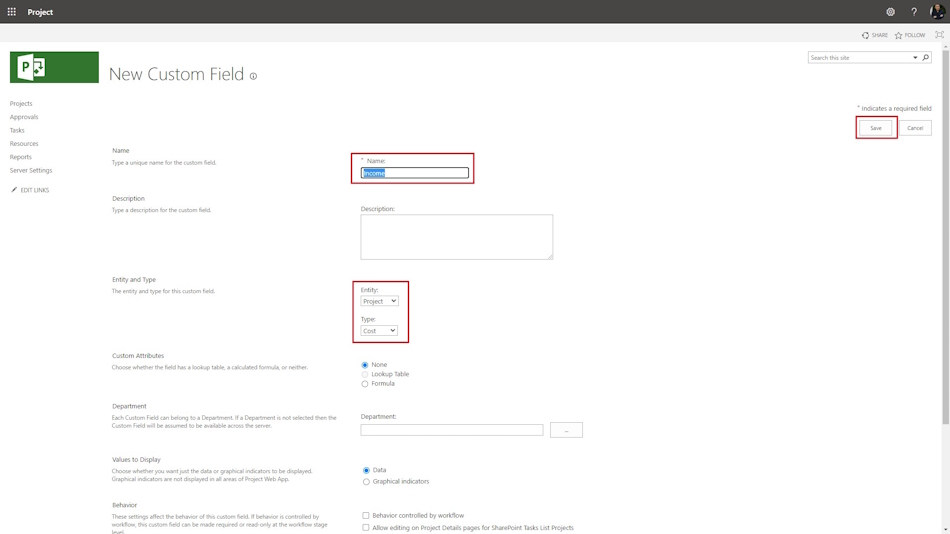
- To create the custom fields, click the "New Field" button.
- Enter the field name in the "Name" field. For example: "Income", "Profit" and "ROI"
- Enter the field description in the "Description" field.
- Select the "Project" in the "Entity" field.
- Select the "Cost" in the "Type" field.
- For the custom column: "Profit":
- Select the Formula in the "Custom Attributes" block.
- Enter the formula: "[Income] - [Cost]".
- For the custom column "ROI":
- Select the Formula in the "Custom Attributes" block.
- Enter the formula: "IIf([Cost] = 0, 0, [Income] / [Cost])".
- To save click the "Save" button.
Using financial indicators in MS Project Server
Steps to add custom columns: "Income", "Cost", "Profit" and "ROI" in MS Project Server:
- Click the "Server Settings" item in the left menu.
- Click the "Manage Views" item in the "Look and Feel" block.
- Click the "Cost" view in the "Project Center" block.
- Add columns: "Income", "Cost", "Profit" and "ROI" in the "Fields" block.
- To save click the "Save" button.

Steps to use custom columns: "Income", "Cost", "Profit" and "ROI" in MS Project Server:
- Click the "Projects" item in the left menu.
- Click the "PROJECT" item in the top menu.
- Select the "Cost" view in the "View" field in the "Data" block.
Steps to use custom columns for a project in MS Project Server:
- Click the "Projects" item in the left menu.
- Select the project and click the project name.
- Click the "Project Details" item in the left menu.
- If you want to enter the project income, click the "Edit" button in the top menu.
- To save click the "Save" button.

#projectportfoliomanagement, #projectcostmanagement, #monitoringandcontrollingprocess, #msprojectserver, #oberemokii

Author: Ivan Oberemok
