
Variance control in MS Project Server
Contents:
- Creating the costum column "Variance control" in MS Project Server
- Variance control in MS Project Pro
- Chat
Creating the costum column "Variance control" in MS Project Server
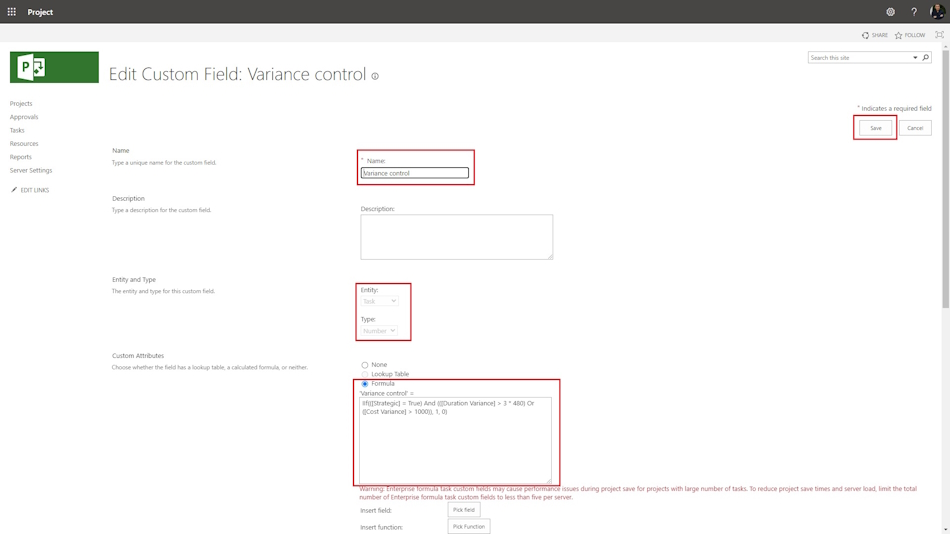
Steps to create the costum column "Variance control" in MS Project Server
- Click the "Server Settings" item in the left menu.
- Click the "Enterprise Custom Fields and Lookup Tables" item in the "Enterprise Data" block.
- Click the "New Field" button.
- Enter the "Variance control" in the "Name" field.
- Select the "Task" in the "Entity" field.
- Select the "Number" in the "Type" field.
- Click the "Formula" in the "Custom Attributes" block.
- Enter the formula in the "Enter formula:" field. "IIf(([Strategic] = True) And (([Duration Variance] > 3 * 480) Or ([Cost Variance] > 1000)), 1, 0)"
- Click the "Use formula" box in the "Calculation for Summary Rows" block.
- To save click the "Save" button.
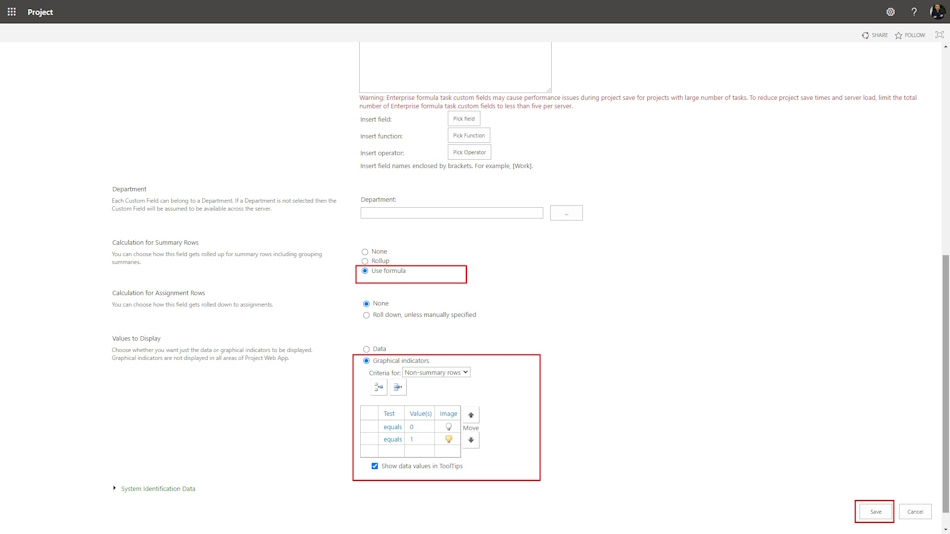
Steps to add graphical indicators the costum column "Variance control" in MS Project Server
- Click the "Server Settings" item in the left menu.
- Click the "Enterprise Custom Fields and Lookup Tables" item in the "Enterprise Data" block.
- Choose the "Variance control" field, click the field name.
- Set the "Graphical indicators" box in the "Values to Display" block.
- Select rules:
- "Test": "equels" - "Value(s)": 0 - "Image": white.
- "Test": "equels" - "Value(s)": 1 - "Image": yellow.
- To save click the "Save" button.
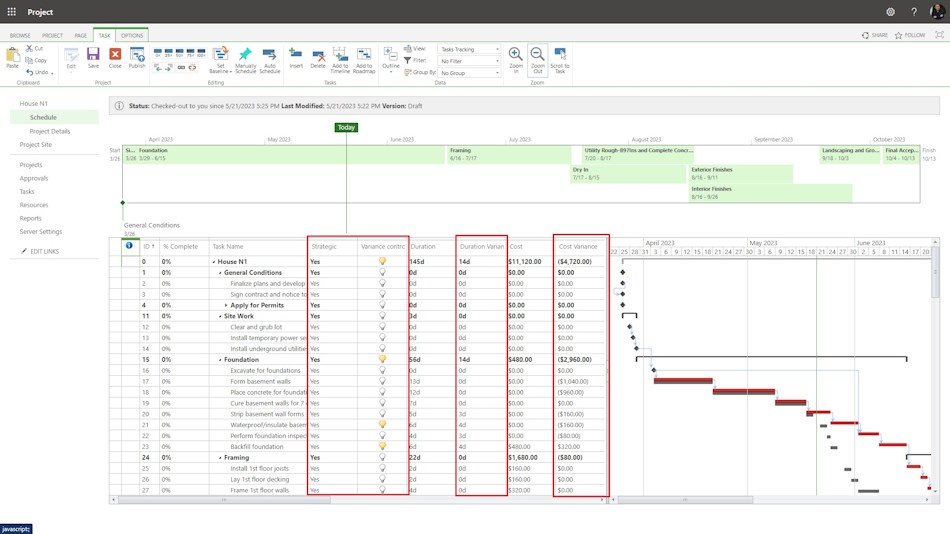
Variance control in MS Project Pro
To control problematic tasks but will be highlighted with a yellow marker.
Steps to add custom columns: "Variance control" and "Strategic" in the "Tasks Tracking" view in MS Project Server:
- Click the "Server Settings" item in the left menu.
- Click the "Manage Views" item in the "Look and Feel" block.
- Click the "Tasks Tracking" view.
- Add columns: "Variance control" and "Strategic" in the "Fields" block.
- To save click the "Save" button.
Steps to use custom columns: "Variance control" and "Strategic" in MS Project Server:
- Click the "Projects" item in the left menu.
- Select the project and click the project name.
- Click the "TASK" item in the top menu.
- Select the "Tasks Tracking" view in the "View" field in the "Data" block.
- Click the "Edit" button in the "Project" block and select the "In Browse" item.
- Select the strategic task, set the "Yes" in the "Strategic" field.
#projectportfoliomanagement, #projectschedulemanagement, #projectcostmanagement, #monitoringandcontrollingprocess, #msprojectserver, #oberemokii

Author: Ivan Oberemok
