
Adding user tasks in MS Project Server
Contents:
- Editing and remove a user task in MS Project Server
- Adding a new user task in MS Project Server
- Adding a task to yourself in MS Project Server
- Reassigning a user task in MS Project Server
- Chat
Editing and remove a user task in MS Project Server
Steps to edit and remove a user task in MS Project Server:
- Opne Ms Project Server.
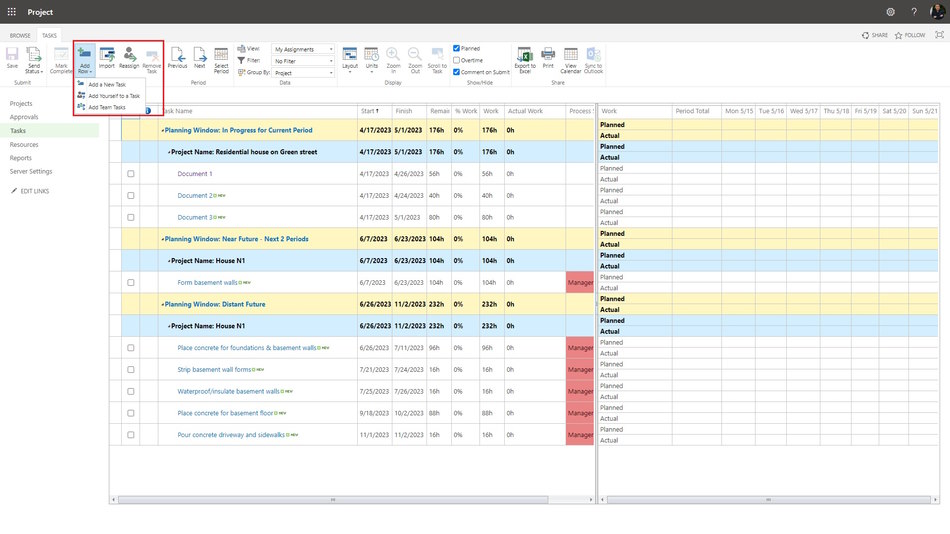
- Click the "Tasks" item in the left menu.
- You can edit data in the cloumns.
- To remove tasks, select task and click the "Remove Task" button in the "Tasks" block.
Adding a new user task in MS Project Server
The user can create a new task, but it must be accepted by the project manager.
Steps to add a new user task in MS Project Server:
- Click the "Tasks" item in the left menu.
- Click the "New Row" button in the "Tasks" block.
- Click the "Add a New Task" item.
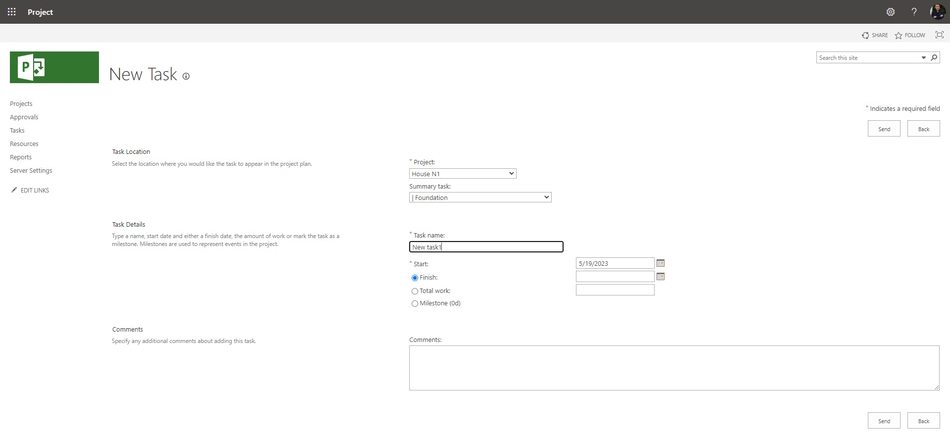
- Select the project name in the "Project:" field.
- Select the summry task in the "Summary task:" field.
- Enter the task name in the "Task name:" field.
- Enter the task start date in the "Start:" field.
- Enter the task end date in the "Finish:" field.
- Enter the task work in the "Total work:" field.
- You can add a milestone, click the "Milestone" box.
- You can add a comments, click the "Comments:" block.
- To save click the "Send" button.
Adding yourself to a task in MS Project Server
The user add yourself a task, but it must be accepted by the project manager.
Steps to add yourself to a task in MS Project Server:
- Click the "Tasks" item in the left menu.
- Click the "New Row" button in the "Tasks" block.
- Click the "Add yourself to a task" item.
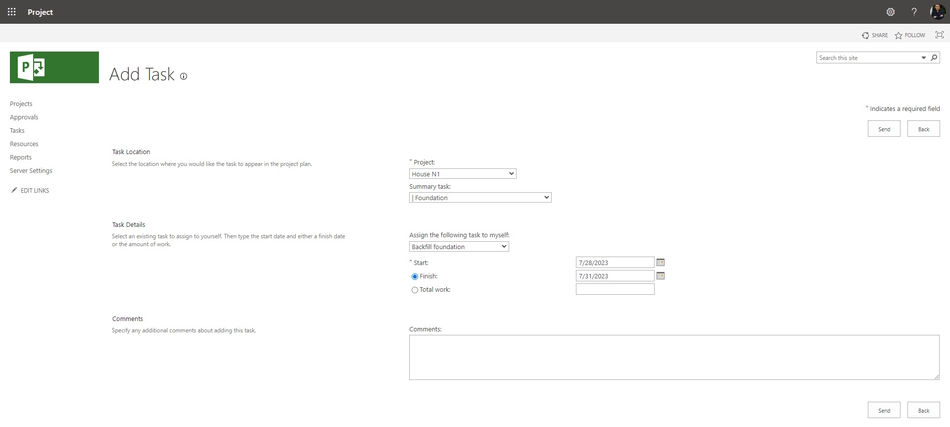
- Select the project name in the "Project:" field.
- Select the summry task in the "Summary task:" field.
- Select the task name in the "Assign the following task to myself:" field.
- Enter the assign start date in the "Start:" field.
- Enter the assign end date in the "Finish:" field.
- Enter the assign work in the "Total work:" field.
- You can add a comments, click the "Comments:" block.
- To save click the "Send" button.
Reassigning a user task in MS Project Server
You can reassign the task to resources included in the project team.
Steps reassign a user task in MS Project Server:
- Click the "Tasks" item in the left menu.
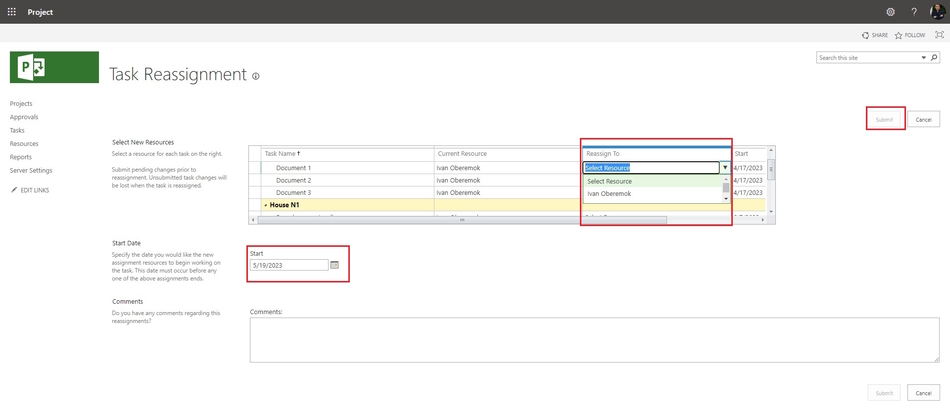
- Click the "Reassign" button in the "Tasks" block.
- Select the a new resource in the "Reassign To" column.
- Enter the reassing start date in the "Start" field.
- You can add a comments, click the "Comments:" block.
- To save click the "Send" button.
#projectportfoliomanagement, #projectschedulemanagement, #planningprocess, #msprojectserver, #oberemokii

Author: Ivan Oberemok
