
Showing user tasks in MS Project Server
Contents:
- Showing user tasks in MS Project Server
- Showing user tasks in Gantt Chart view in MS Project Server
- Showing user tasks in Timephased Data view in MS Project Server
- Showing the task data in MS Project Server
- Chat
Showing user tasks in MS Project Server
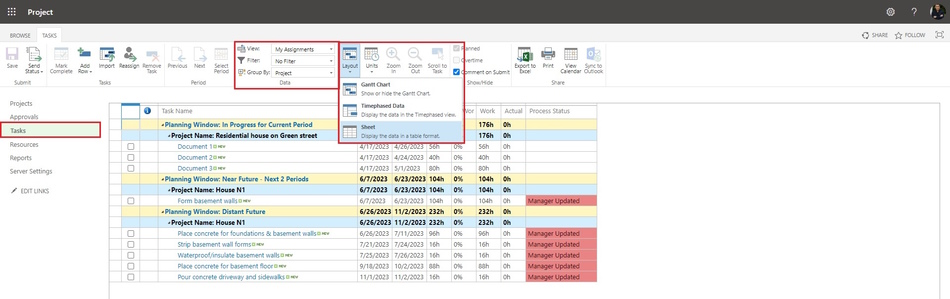
In MS Project Server you can see all the tasks assigned to you and your resources. You can edit tasks data in the columns.
Steps to show user tasks in MS Project Server:
- Open MS Project Server.
- Click the "Task" item in the left menu.
- Click the "TASKS" item in the top menu.
- Choose a view in the "View:" field.
- You can set a filter in the "Filter:" field.
- You can set a group in the "Group by:" field.
- To show your tasks, click the "Layout" button and click the "Sheet" item.
- You can change unit's format. Click the "Units" button and select units and their format.
- You can export tasks data to Excel. Click the "Export to Excel" button in the "Share" block.
- You can print tasks. Click the "Print" button in the "Share" block.
- You can show your tasks on the calendar. Click the "View Calendar" button in the "Share" block.
Showing user tasks in Gantt Chart view in MS Project Server
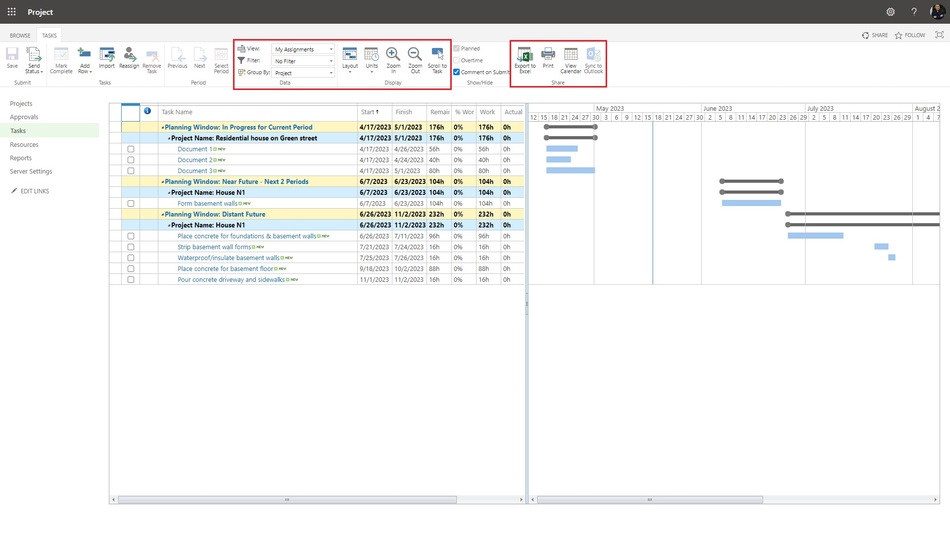
Steps to show user tasks in Gantt Chart view in MS Project Server:
- Click the "Task" item in the left menu.
- Click the "TASKS" item in the top menu.
- Click the "Gantt Chart" button and click the "Sheet" item.
- You can zoom a task data. Click the "Zoom in" button and the "Zoom out" button.
- To show a task bar. Select the task and click the "Scroll to Task" button.
Showing user tasks in Timephased Data view in MS Project Server
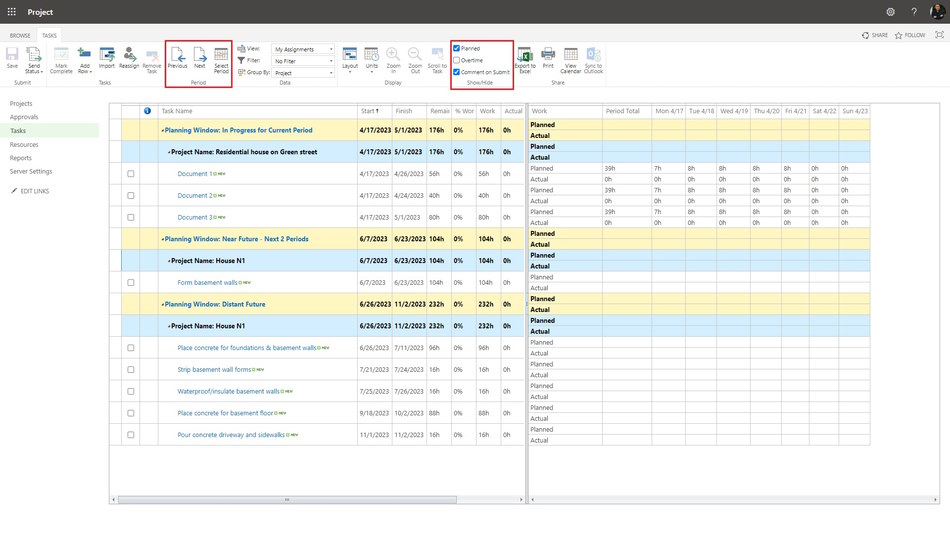
Steps to show user tasks in Timephased Data view in MS Project Server:
- Click the "Task" item in the left menu.
- Click the "TASKS" item in the top menu.
- Click the "Timephased Data" button and click the "Sheet" item.
- You can show the plan work, click the "Planned" box in the "Show/Hide" block.
- You can show the owertime work, click the "Owertime" box in the "Show/Hide" block.
- To show the previous time period click the "Previous" button.
- To show the next time period click the "Next" button.
- To choose the time period:
- Click the "Select Period" button.
- Enter the start date in the "From" field.
- Enter the end date in the "To" field.
- Click the "Ok" button.
Showing the task data in MS Project Server
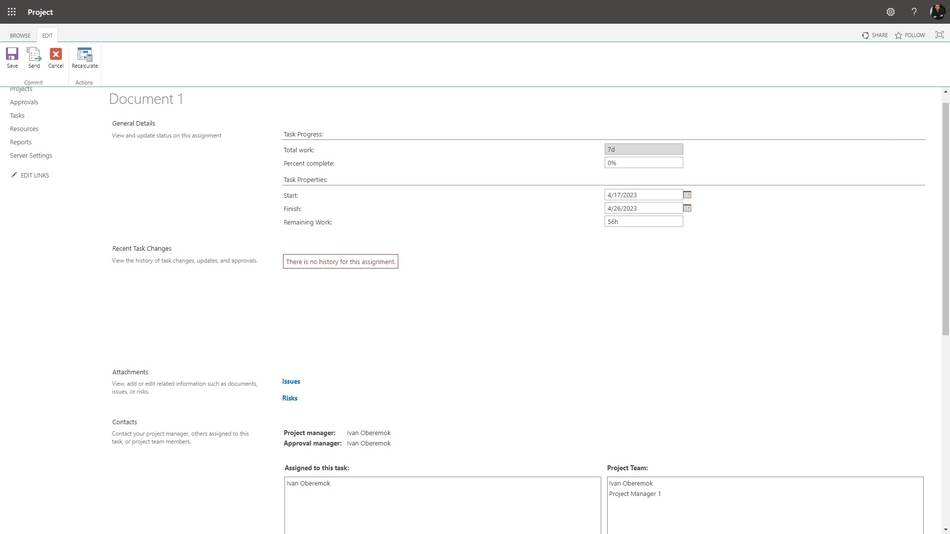
You can edit the task date. The project manager must approve all your changes.
Steps to show the task data in MS Project Server:
- Click the "Task" item in the left menu.
- Click the task name in the "Task Name" column.
- You can enter a percent complete in the "Percent complete" field.
- You can enter a start date in the "Start:" field.
- You can enter a end date in the "Finish:" field.
- You can enter a work in the "Remaining Work:" field.
- You can leave the note in the "Notes" block.
- To save your changes click the "Save" button.
- To recalculate task data click the "Recalculate" button.
- Send to project manager click the "Send" button.
#projectportfoliomanagement, #projectresourcemanagement, #monitoringandcontrollingprocess, #msprojectserver, #oberemokii

Author: Ivan Oberemok
