
Assigning enterprise resources in MS Project Server
Contents:
- Setting the resource column in the view in MS Project Server
- Assigning enterprise resources in MS Project Server
- Show enterprise resources assigned in MS Project Server
- Chat
Setting the resource column in the view in MS Project Server
Steps to add the resource column in MS Project Server:
- Click the "Server Settings" item in the left menu.
- Click the "Manage Views" item in the "Look and Feel" block.
- Click the "Tasks Schedule" view.
- Add the "Resource Names" in the "Fields" block.
- To save click the "Save" button.
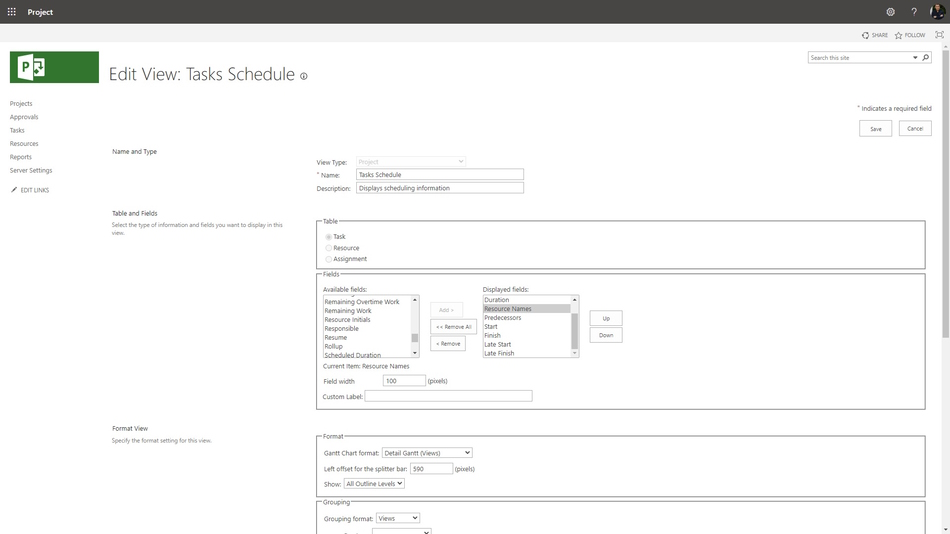
Assigning enterprise resources in MS Project Server
Steps to assign enterprise resources in MS Project Server
- Open MS Project Server.
- Click the "Projects" item in the left menu.
- Click the project name.
- Click the "TASK" item in the top menu.
- Click the "Edit" button in the "Project" block.
- Select the "Tasks Schedule" view in the "Data" block.
- Click the cell in the "Resource Names" column near the task name.
- Choose the resource.
- To save click the "Save" button in the "Project" block.
- To exit click the "Close" button in the "Project" block.

Show enterprise resources assigned in MS Project Server
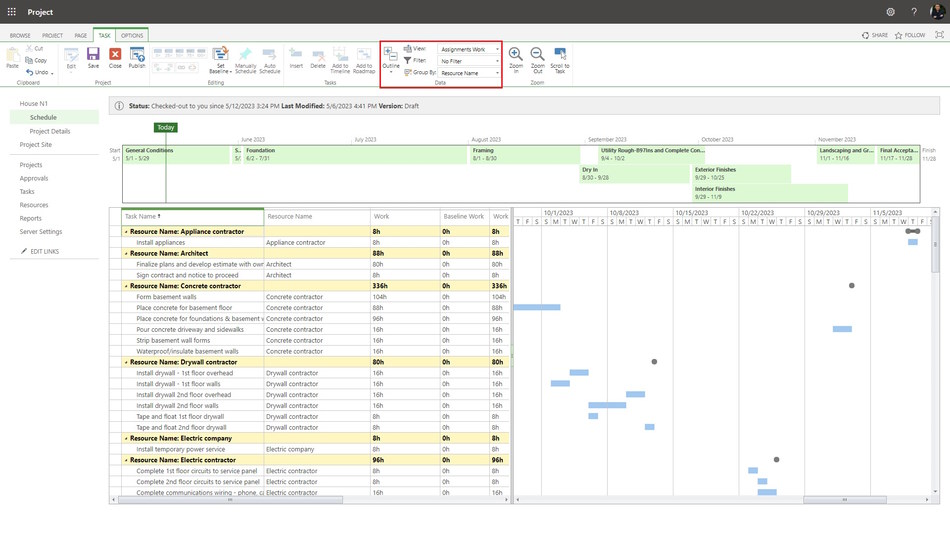
You can display resources assigned in different views.
- Assignments Cost - show tasks, resources and cost for used them.
- Assignments Delay - show tasks, resources and delay for used them.
- Assignments Earned Value - show tasks, resources and column of earned value.
- Assignments Tracking - show tasks, resources and column for tracking them.
- Assignments Work - show tasks, resources and column for planning work.
- Resource Cost - show resources and cost for used them.
- Resource Earned Value - resources and column of earned value.
- Resource Work - resources and column of earned value.
#projectportfoliomanagement, #projectresourcemanagement, #planningprocess, #msprojectserver, #oberemokii

Author: Ivan Oberemok
