
Build team from enterprise in MS Project Pro
Contents:
Build team from enterprise in MS Project Pro
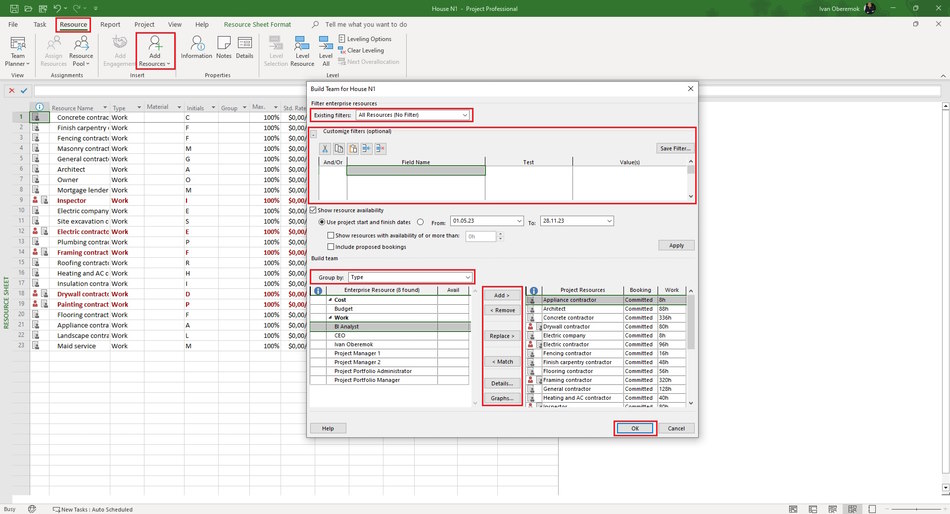
Steps to build team from enterprise resources in MS Project Pro:
- Open MS Project Pro
- Open the project plan.
- Click the "Rresource" item in the top menu.
- Click the "Build Team from Enterprise" item.
- To add new resource:
- Choose the enterprise resource in the left block.
- Click the "Add >" button.
- To remove the enterprise resource from project plan:
- Select the local resource in the right block.
- Click the "< Remove" button.
- To replace the local resource:
- Choose the enterprise resource in the left block.
- Select the local resource in the right block.
- Click the "Replace >" button.
- To match resources:
- Choose the local resource in the right block.
- Click the "< Match" button.
- To show details resource:
- Choose the resource in the right block or the left block.
- Click the "Details" button.
- To show graphs resource:
- Choose the resource in the right block or the left block.
- Click the "Graphs" button.
- You can group enterprise resources, select the group in the "Group by:" field.
- You can filter enterprise resources, select the filter in the "Existing filters:" field.
- You can create the filter in the "Custemize filters (optional)" block:
- Select the name field in the "Field Name" column.
- Set the condition for selecting field values in the "Test" field.
- Set value to compare with field values in the "Value(s)" field. You can set a different field name for comparison.
- Set a logical relationship between filter rows in the "And/Or" field.
- To save click the "Save Filter ..." button.
- You can set up the filter:
- Set up the period, enter the start date in the "From" filed and the finish date in the "To" field.
- If you want filter the resource with availability time enter the hours in the "Show resources with availability of or more than:" field.
- If you want to show resources with the proposed bookings, click the "Include proposed bookings" box.
- Clic the "Apply" button.
- To save click the "Ok" button.
#projectportfoliomanagement, #projectresourcemanagement, #planningprocess, #msprojectserver, #oberemokii

Author: Ivan Oberemok
