
Creating enterprise сontractor resources using material type in MS Project Server
Contents:
- Creating enterprise сontractor resources using material type in MS Project Server
- Description of enterprise сontractor resources using material type in MS Project Pro
- Chat
Creating enterprise сontractor resources using material type in MS Project Server
In MS Project Pro, you can use a material resource type to create a сontractor description resource. The resources created in this way allow you to fully manage the costs of the project. This method of describing costs will allow the use of the earned value method.
Using the resources of the enterprise contractor, you can describe the participation of the contractor in the project. Assign tasks and costs to the contractor and track their progress.
Using enterprise сontractor resources you can describe the following resources:
- Contractor company
- Contractor company type
- Group of contractors
- Group of contractor types
Steps to create enterprise сontractor resources in MS Project Server:
- Open MS Project Server.
- Click the "Resources" item in the left menu.
- Click the "RESURCES" item in the top menu.
- Click the "New" button in the "Resources" block.
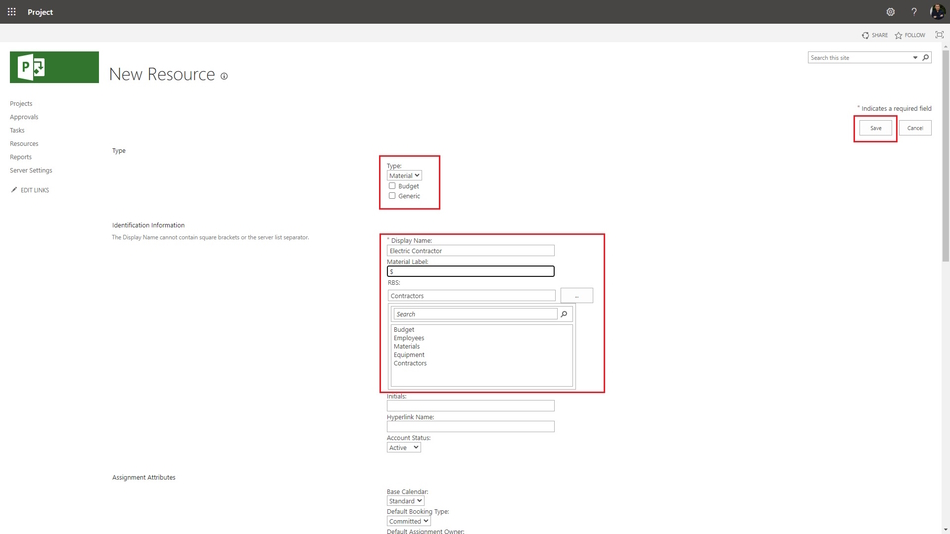
- Choose the "Material" in the field "Type".
- If you click the "Generic" box you will describe the generic resource.
- Enter the сontractor resource name in the field "Display Name".
- Enter the currency sign in the "Material Label:" field.
- Choose the "Contractors" in the "RBS:" field.
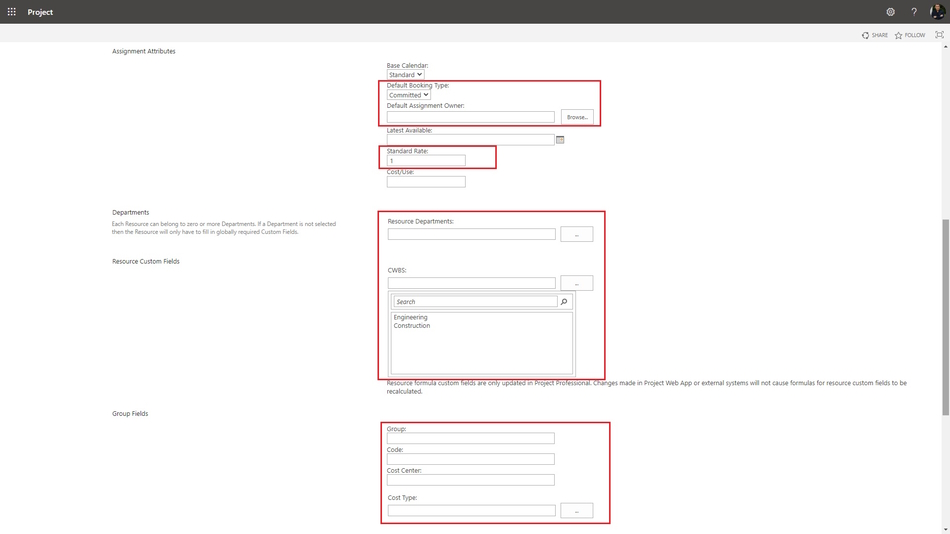
10. Set up the resource booking type in the "Default Booking Type:" field.
11. Select the username that will enter the fact that the enterprise сontractor resource was used in the "Default Assignment Owner:" field.
12. Enter the "1" in the "Standard Rate:" field.
13. Choose the enterprise сontractor resource department name in the "Resource Departments:" field.
14. You can set the enterprise сontractor resource group in the "Group" field.
15. You can set the enterprise сontractor resource code in the "Code:" field.
16. You can set the resource cost type in the "Cost type:" field.
17. To save click the "Save" button.
Description of enterprise сontractor resources using material type in MS Project Pro
Steps to description of enterprise сontractor resources using material type in MS Project Pro:
- Open MS Project Server.
- Click the "Resources" item in the left menu.
- Click the "RESURCES" item in the top menu.
- Click the "Open" button in the "Resources" block.
- Duble-click the enterprise сontractor resource.
- Click the "Code" tub.
- Set the work types of enterprise сontractor resource. System use the "A" type for default.
- You can add a new rates in the "Cost rate tables" table :
- Enter the rate start date in the "Effective Date" column.
- Enter the rate value in the "Standard Rate" column.
- Enter the per use cost in the "Per Use Cost" column.
- You can set accrue in the "Cost accual:" field.
- Click the "Notes" tub.
- In the Notes text box, enter your note text. It is possible to format the entered text by clicking on the appropriate buttons "Format Font", "Align left", "Align center", "Align right", "Bulleted list".
- In the "Resource Infromation" window, on the "Notes" tab, click the "Insert Object" button. You can add a description of the material resource or a link to a file with a description.
- In the "Insert object" window, click the "Create from file" button. Enter the full name of the file (including the path) you want to attach to the resource, or click the Browse button and browse for your file.
- To add an object to a project file, select the "Link" check box. Keep only references to this object.
- To display the object as an icon, select the "Display As Icon" checkbox:
- Click the "Save" button and close MS Project Pro.


Author: Ivan Oberemok
