
Setting the "Make-or-Buy" enterprise custom column in MS Project Server
Contents:
- Creating the "Make-or-Buy" enterprise custom field in MS Project Server
- Adding the "Make-or-Buy" enterprise custom field in MS Project Server
- Using the "Make-or-Buy" enterprise custom column in MS Project Server
- Chat
Creating the "Make-or-Buy" enterprise custom field in MS Project Server
To appoint contractors, it is necessary to identify the tasks that they will implement. You can create a custom column that will allow you to highlight the tasks of subcontracting organizations.
Steps to create the "Make-or-Buy" enterprise custom field in MS Project Server:
- Click the "Server Settings" item in the left menu.
- Click the "Enterprise Custom Fields and Lookup Tables" item in the "Enterprise Data" block.
- To create the custom fields, click the "New Field" button.
- Enter the "Make-or-Buy" in the "Name" field. The name must to be unic. You can use special symbols.
- Enter the field description in the "Description" field.
- Select the "Task" in the "Entity" field.
- Select the "Flag" in the "Type" field.
- To save click the "Save" button.
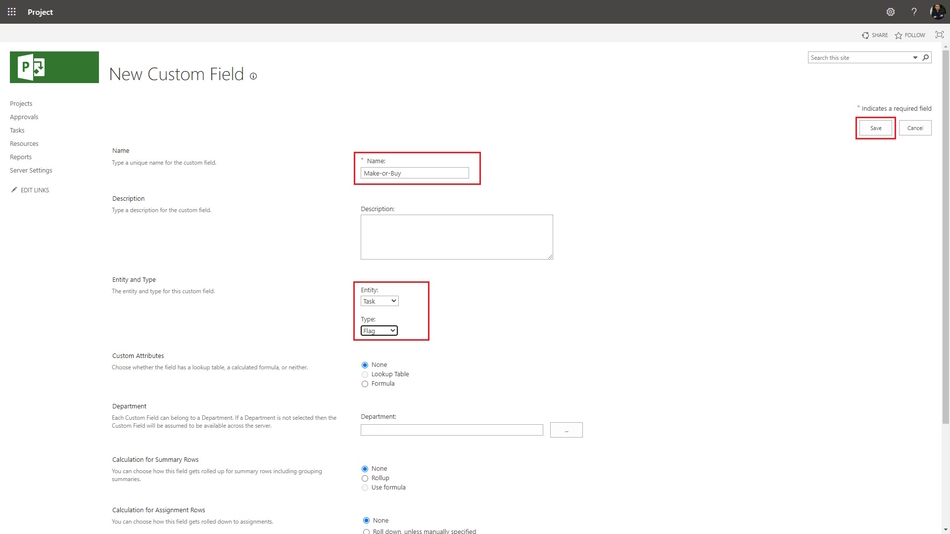
Adding the "Make-or-Buy" enterprise custom field in MS Project Server
Steps to add the "Make-or-Buy" enterprise custom field in MS Project Server:
- Click the "Server Settings" item in the left menu.
- Click the "Manage Views" item in the "Look and Feel" block.
- Click the "Tasks Schedule" view.
- Add the "Make-or-Buy" in the "Fields" block.
- To save click the "Save" button.

Using the "Make-or-Buy" enterprise custom column in MS Project Server
Steps to use the "Make-or-Buy" enterprise custom column in MS Project Server:
- Click the "Projects" item in the left menu.
- Select the project and click the project name.
- Click the "TASK" item in the top menu.
- Select the "Tasks Schedule" view in the "View" field in the "Data" block.
- Click the "Edit" button in the "Project" block and select the "In Browse" item.
- Set the "Yes" or "No" in the "Make-or-Buy" field.
- To save click the "Save" button.

#projectportfoliomanagement, #projectprocurementmanagement, #initiatingprocess, #planningprocess, #msprojectserver, #oberemokii

Author: Ivan Oberemok
