
Creating enterprise material resources in MS Project Server
Contents:
- Creating enterprise material resources in MS Project Server
- Description of enterprise material resources in MS Project Pro
- Chat
Creating enterprise material resources in MS Project Server
In MS Project Server you can describe the following types of material resources:
- Type of material resources.
- Material group resources.
- Material resources.
Steps to create enterprise material resources in MS Project Server:
- Open MS Project Server.
- Click the "Resources" item in the left menu.
- Click the "RESURCES" item in the top menu.
- Click the "New" button in the "Resources" block.
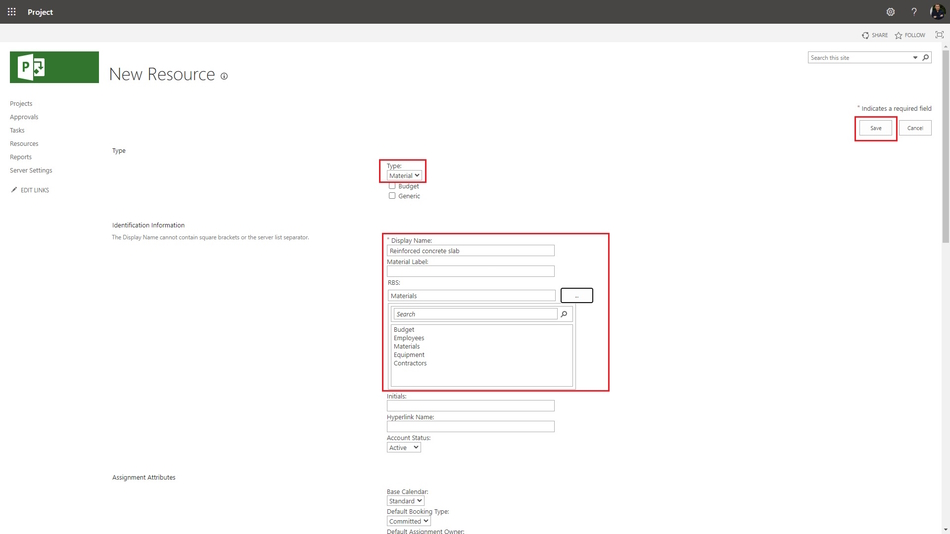
- Choose the "Material" in the field "Type".
- If you click the "Generic" box you will describe the generic resource.
- Enter the material resource name in the field "Display Name".
- Choose the "Material" in the "RBS:" field.
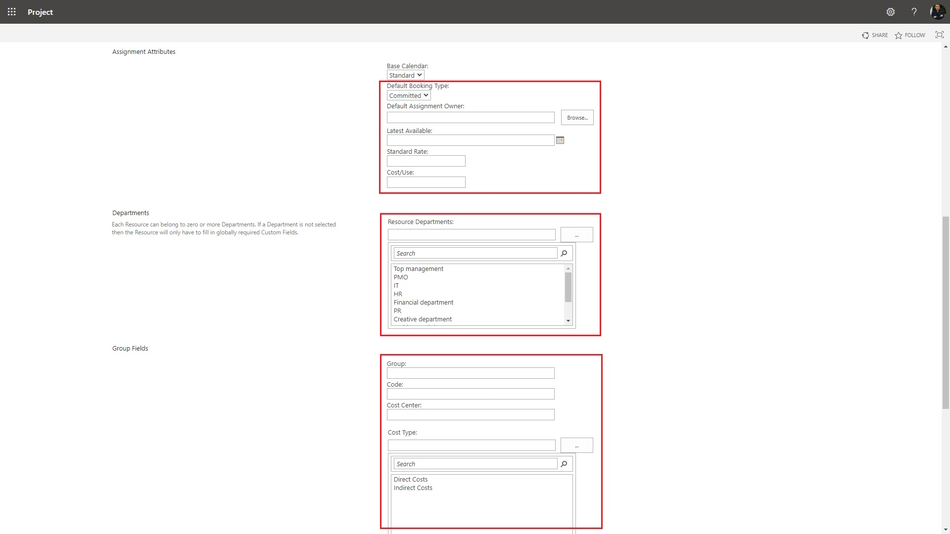
13. Set up the resource booking type in the "Default Booking Type:" field.
14. Select the username that will enter the fact that the material resource was used in the "Default Assignment Owner:" field.
15. Enter the cost of the material resource per unit in the "Standard Rate:" field.
16. Enter the using cost in the "Cost/Use:" field.
17. Choose the material resource department name in the "Resource Departments:" field.
18. You can set the material resource group in the "Group" field.
19. You can set the material resource code in the "Code:" field.
20. You can set the resource cost type in the "Cost type:" field.
21. To save click the "Save" button.
Description of enterprise material resources in MS Project Pro
Steps to description of enterprise material resources in MS Project Pro:
- Open MS Project Server.
- Click the "Resources" item in the left menu.
- Click the "RESURCES" item in the top menu.
- Click the "Open" button in the "Resources" block.
- Duble-click the material resource.
- Click the "Code" tub.
- Set the type of material resource. System use the "A" type for default.
- You can add a new rates in the "Cost rate tables" table :
- Enter the rate start date in the "Effective Date" column.
- Enter the rate value in the "Standard Rate" column.
- Enter the per use cost in the "Per Use Cost" column.
- You can set accrue in the "Cost accual:" field.
- Click the "Notes" tub.
- In the Notes text box, enter your note text. It is possible to format the entered text by clicking on the appropriate buttons "Format Font", "Align left", "Align center", "Align right", "Bulleted list".
- In the "Resource Infromation" window, on the "Notes" tab, click the "Insert Object" button. You can add a description of the material resource or a link to a file with a description.
- In the "Insert object" window, click the "Create from file" button. Enter the full name of the file (including the path) you want to attach to the resource, or click the Browse button and browse for your file.
- To add an object to a project file, select the "Link" check box. Keep only references to this object.
- To display the object as an icon, select the "Display As Icon" checkbox:
- Click the "Save" button and close MS Project Pro.


Author: Ivan Oberemok
