
Creating enterprise cost resources in MS Project Server
Contents:
- Creating enterprise cost resources in MS Project Server
- Adding the lookup table of the cost type field in MS Project Server
- Chat
Creating enterprise cost resources in MS Project Server
Using enterprise cost resources you can describe costs of any level. To group resource costs, you can use the "Group" system column or create the custom field.
Using enterprise cost resources you can describe the following resources:
- Financial cost types
- Financial costs
- Material group costs
- Cost of materials
- Equipment group costs
- Cost of equipment
- Cost per team of specialists
- Costs per type of specialist
- Specialist costs
Steps the add an enterprise cost resource in MS Project Server:
- Open MS Project Server.
- Click the "Resources" item in the left menu.
- Click the "RESURCES" item in the top menu.
- Click the "New" button in the "Resources" block.
- Choose the "Cost" in the field "Type".
- If you click the "Generic" box you will describe the generic resource.
- Enter the name resource in the field "Display Name".
- Select the RBS level to the resource in the "RBS:" field.
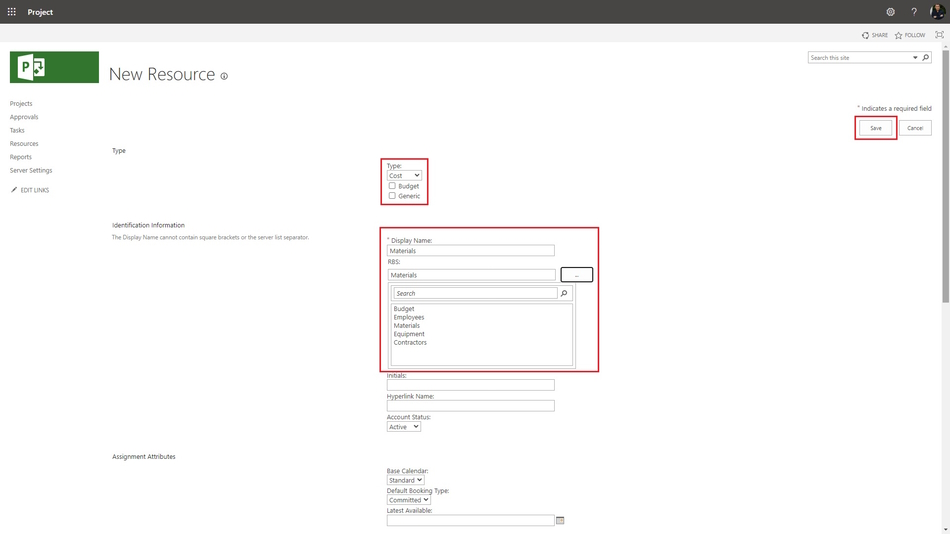
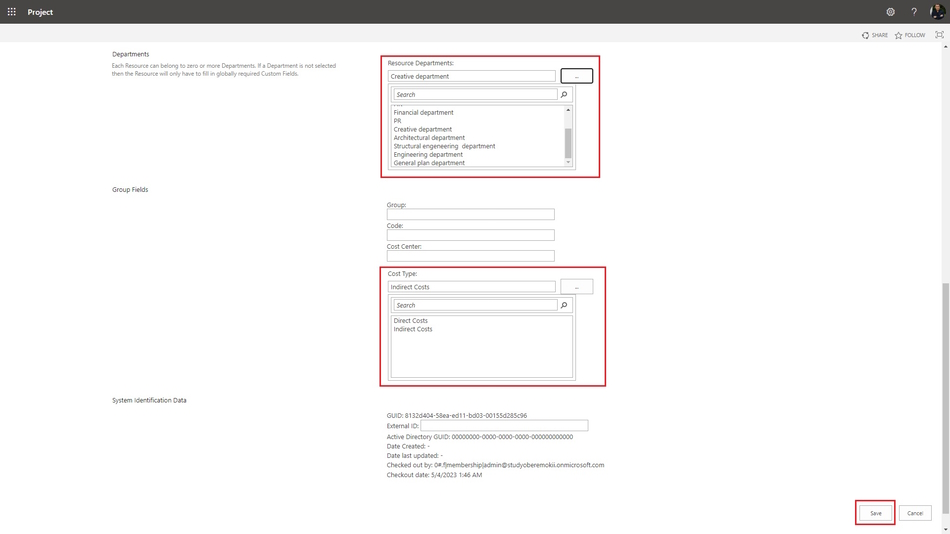
9. Choose the resource department name in the "Resource Departments:" field.
10. Choose the cost type name in the "Cost Type:" field.
11. Click the "Save" button.
Adding the lookup table of the cost type field in MS Project Server
You can add different types of costs:
- Fixed Costs.
- Variable Costs.
- Direct Costs.
- Indirect Costs.
- Overhead Costs.
- Capital Expenditures
Steps to add the lookup table of the cost type field in MS Project Server:
- Click the "Server Settings" item in the left menu.
- Click the "Enterprise Custom Fields and Lookup Tables" item in the "Enterprise Data" block.
- Click the "RBS" in the "Lookup Table" column.
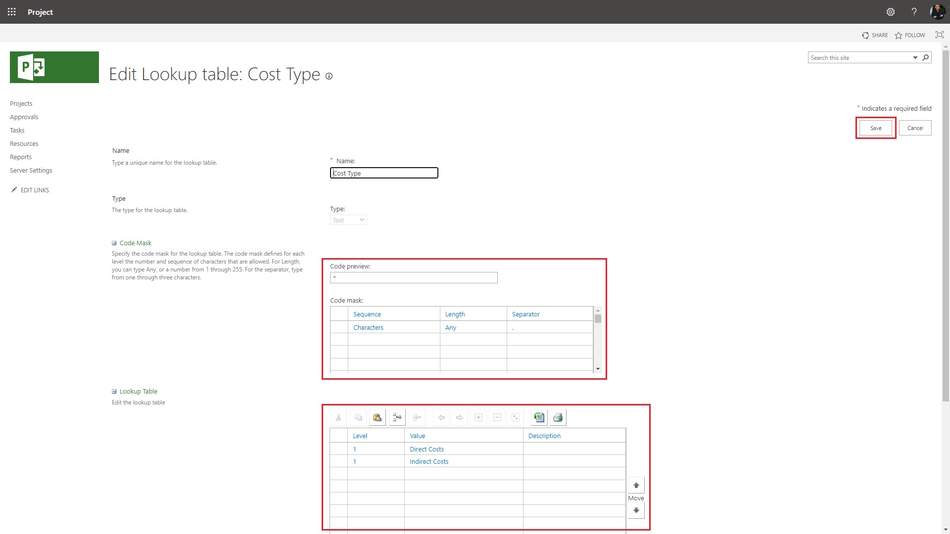
- You can set multi level outline, add more values of the code mask table. Set up the code mask values:
- Set the character type for each level.
- Set the length of level values.
- Set the type a separator.
- Add vlues to the lookup table:
- Enter the table values in the "Value" column.
- If you want, you can add the description in the "Description" column.
- Click the "Save" button.
#projectportfoliomanagement, #projectcostmanagement, #projectresourcemanagement, #initiatingprocess, #msprojectserver, #oberemokii

Author: Ivan Oberemok
