
Setting up reporting in MS Project Server
Contents:
- Setting up reporting in MS Project Server
- Setting up a reporting period in MS Project Server
- Setting up access to report data in MS Project Server
- Chat
Setting up reporting in MS Project Server
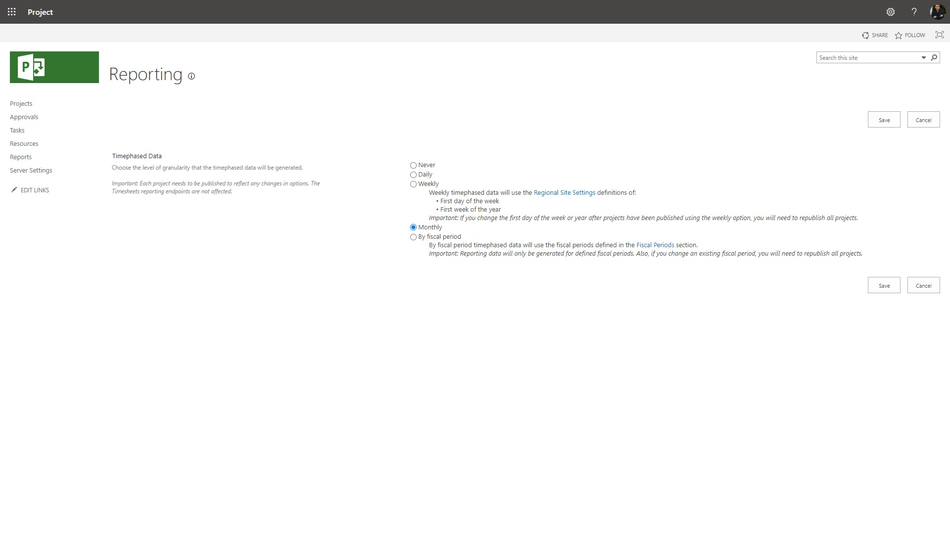
You can set the level of granularity that the timephased data will be generated.
Steps to set up reporting in MS Project Server:
- Click the "Server Settings" item in the left menu.
- Click the "Reporting" link in the "Enterprise Data" block.
- Choose the the level of granularity that the timephased data will be generated: "Never", "Daily", "Weekly", "Monthly" or "By fiscal period".
- To save click the "Save" button.
Setting up a reporting period in MS Project Server
Steps to set up a reporting period in MS Project Server:
- Click the "Server Settings" item in the left menu.
- Click the "Additional Server Settings" link in the "Operational Policies" block.
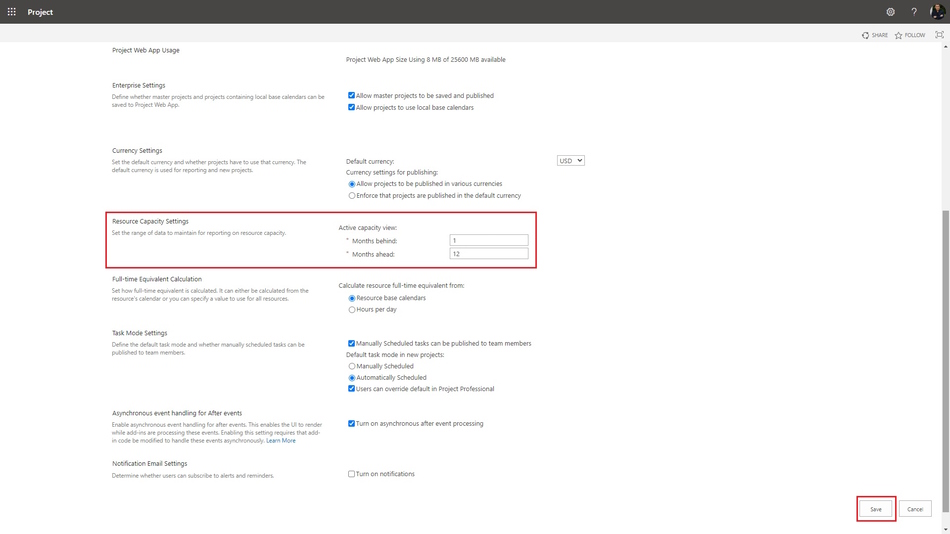
- Set up the number of reporting months prior to the current period in the "Months behind:" field.
- Set up the number of reporting months after the current period in the "Months anead:" field.
- To save click the "Save" button.
Setting up access to report data in MS Project Server
Steps to set up access to report data in MS Project Server:
- Click the "Server Settings" item in the left menu.
- Click the "Manage Groups" link in the "Security" block.
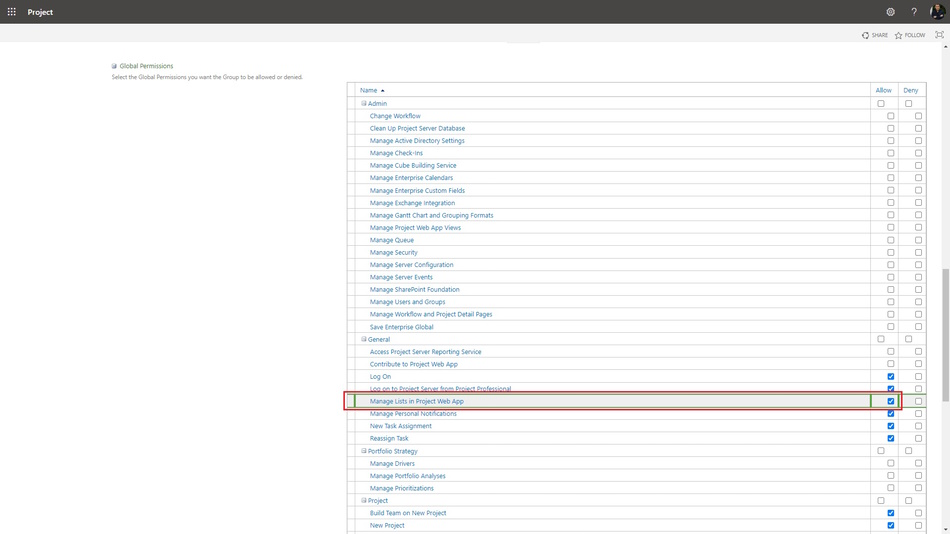
- Choose the group name in the "Group name" column.
- Click the "Manage Lists in Project Web App" box in the "Global Permissions" block.
- To save click the "Save" button
#projectmanagment, #projectcommunicationsmanagement, #initiatingprocess, #msprojectserver, #oberemokii

Author: Ivan Oberemok
