
Project baseline in MS Project Server
Contents:
Saving project baseline in MS Project Server
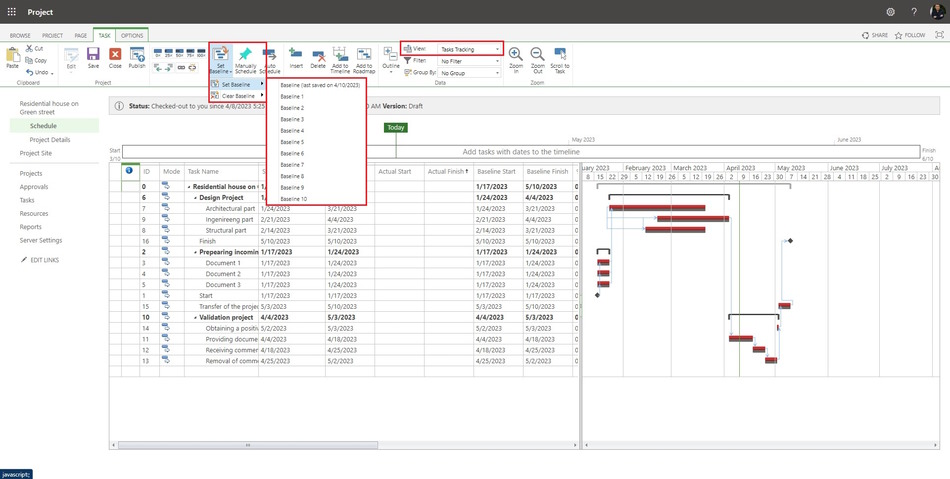
- Open a project plan. Click the "Projects" item in the left menu and click the project name.
- Click the "Schedule" item in the left menu.
- Click the "TASK" tub in the top menu.
- Click the "Edit" button in the "Project" block.
- Click the "In Browser" item.
- Select the "Tasks Tracking" view in the "View" field in the "Data" block.
- Click the "Set Baseline" button in the "Editing" block.
- Click the "Set Baseline" item.
- Select the baseline name.
- You can remove a baseline. Click the "Cear Baseline" item.
- Click the "Save" button in the "Project" block.
- If you want publish a plan, click the "Prublich" button in the "Project" block.
- Click the "Close" button in the "Project" block.
- Select the "Check it in" box and click the "Ok" button.
Setting tasks tracking in MS Project Server
You can customize views to control baselines to suit your needs.
Steps to set up tasks tracking in MS Project Server:
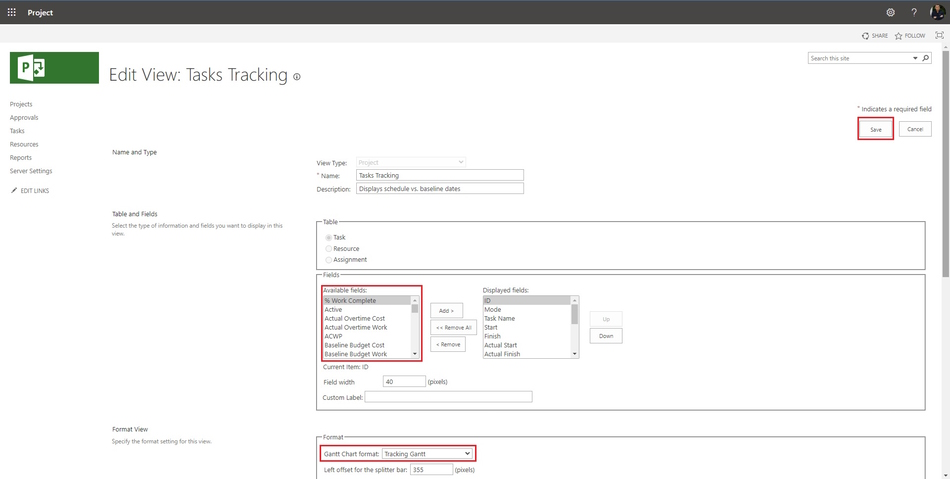
- Click the "Server Setting" item in the left menu.
- Click the "Manage Views" link in the "Look and Feel" block.
- Click the "Tasks Tracking" view.
- Select fields in the "Fields" block. We are recommending to select baseline fields:
- Baseline Duration,
- Duration Variance,
- Baseline Cost,
- Cost Variance,
- Baseline Work,
- Work Variance
- Baseline Start,
- Start Variance,
- Baseline Finish,
- Finish Variance.
- Select the "Tracking Gantt" in the "Gantt Chart format:" field.
- Click the "Save" button
#projectmanagment, #projectschedulemanagement, #planningprocess, #msprojectserver, #oberemokii

Author: Ivan Oberemok
