
Portfolio timeline in MS Project Server
Contents:
- Adding projects and tasks to a portfolio timeline in MS Project Server
- Setting a portfolio timeline in MS Project Server
- Chat
Adding projects and tasks to a portfolio timeline in MS Project Server
The timeline in MS Project Server is used to monitor a portfolio. The most common timeline is used by company management for tracking purposes.
Steps to add projects to a portfolio timeline in MS Project Server:
- Click the "Projects" item in the left menu.
- Select projects.
- Click the "PROJECTS" item in the top menu.
- Click the "Add Project" button in the "Timeline" block.
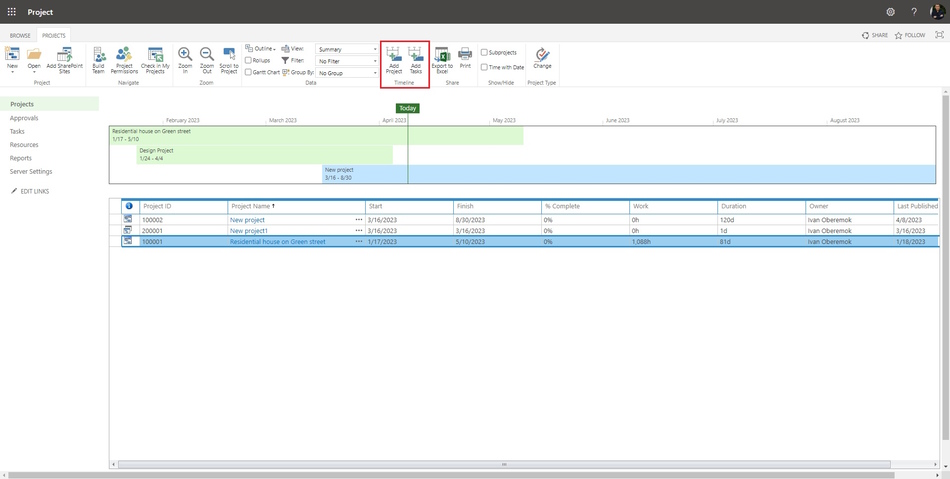
Steps to add tasks to a portfolio timeline in MS Project Server:
- Click the "Projects" item in the left menu.
- Select projects.
- Click the "PROJECTS" item in the top menu.
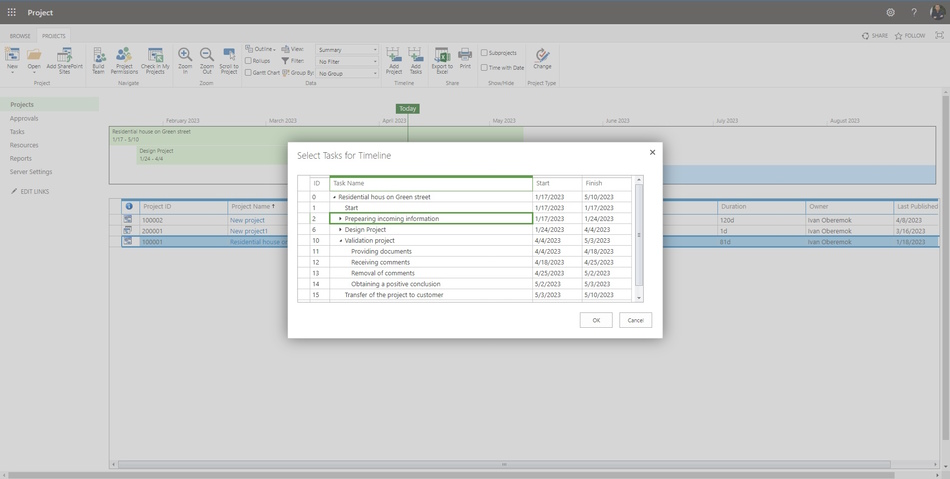
- Click the "Add Tasks" button in the "Timeline" block.
- Select tasks in the "Select Tasks for Timeline" window.
- Click the "OK" button.
Setting a portfolio timeline in MS Project Server
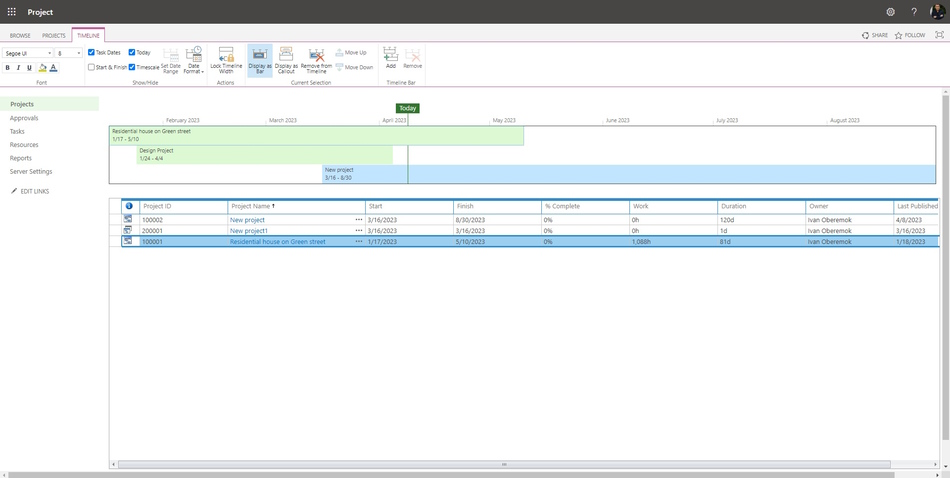
Steps to set up a portfolio schedule in MS Project Server:
- Click the "Projects" item in the left menu.
- Click the timeline.
- Click the "TIMELINE" item in the top menu.
- You can set up tasks style in the "Font" block. Select the task in the timeline. :You can change: a font task, a font size, a font color, a font style.
- You show /hide task dates (a task start date and a tas end date). Click the "Task Dates" box in the "Show/Hide" block.
- You show /hide project dates (a project start date and a project end date). Click the "Start & Finish" box in the "Show/Hide" block.
- You show /hide a today date. Click the "Today" box in the "Show/Hide" block.
- You show /hide a timescale. Click the "Timescale" box in the "Show/Hide" block.
- You can change the timeline periond.
- Click the "Set Date Range" buton.
- Click the "Set costum dates" box.
- Enter the period start date in the "Start" field.
- Enter the period end date in the "Finish" field.
- Click the "Ok" button.
- You can set up timeline date format. Click the "Date Format" button.
- You can lock changes to the timeline for other users. Click the "Lock Timeline bar" button in the "Actions" block.
- You can display task like a bar. Select the task and click the "Dispaly as Bar" button in the "Current Selection" block.
- You can display task like a callout. Select the task and click the "Dispaly as Callout" button in the "Current Selection" block.
- You can remove task from timeline. Select the task and click the "Remove from Timeline" button in the "Current Selection" block.
- You can change the task position. Select the task and click the button "Move Up" or "Move Down" in the "Current Selection" block.
- You can add a new timeline. Click the "Add" button in the "Timeline Bar" block.
- You can remove the timeline. Select the timeline and click the "Remove" button in the "Timeline Bar" block.
#projectmanagment, #projectschedulemanagement, #planningprocess, #msprojectserver, #oberemokii, #projectportfoliomanagement, #programmanagement

Author: Ivan Oberemok
