
Creating a project site in MS Project Server
Contents:
- Creating a project site when you first publish a project in MS Project Server
- Creating a project site in MS Project Server
- Chat
Creating a project site when you first publish a project in MS Project Server
MS Project Server can create a project site when you first publish a project.
Steps to creatie a project site when you first publish a project in MS Project Server:
- Click the "Server Settings" item in the left menu.
- Click the "Enterprise Project Type" link in the "Workflow and Project Detail Pages" block.
- Select the project type and click project name.

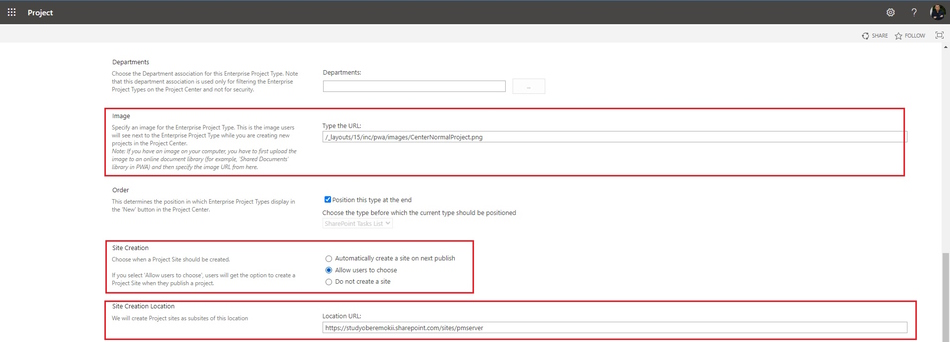
Steps to set up the creating project site in MS Project Server:
- You can set the logo project site setting the its link in the "Image" field.
- if you want to create a project site without confirmation, click the "Automatically create a site on next publish" button.
- if you want to create a project site with user confirmation, click the "Allow use" button.
- if you don't want to create a project site, click the "Do not create a site" button.
- You can select to location a project site in the "Location URL" field in the "Site Creation Location" block.
- Click the "Save" button.
Creating a project site in MS Project Server
Steps to create a project site in MS Project Server
- Click the "Server Settings" item in the left menu.
- Click the "Connected SharePoint Sites" link in the "Operational Policies" block.
- Select the project name.
- To create a new project site. click the "Create Site" button.
- To edit a project site adress, click the "Edit Site Adress" button.
- To synchronize a project site and project data click the "Synchronize" button.
- To delete a project site. click the "Delete Site" button.
- To open a project site settings. click the "Go to Project Site Settings" button.
- To active a project site. click the "Active" button.
- To deactive a project site. click the "Deactive" button.
- To open a project site . click the site adress link.


#msprojectserver, #oberemokii, #projectmanagment, #projectintegrationmanagement, #initiatingprocess

Author: Ivan Oberemok
