
Changing the look of a PWA site in MS Project Server
Contents:
- Changing the look of a PWA site in MS Project Server
- Changing the name, description and logo of a PWA site in MS Project Server
- Chat
Changing the look of a PWA site in MS Project Server
Steps to change the site settings in MS Project Server:
- Click the "Setting" button.
- Click the "Site settings" item.
- Click the "Top link bar" item in the "Look and Fee" block.

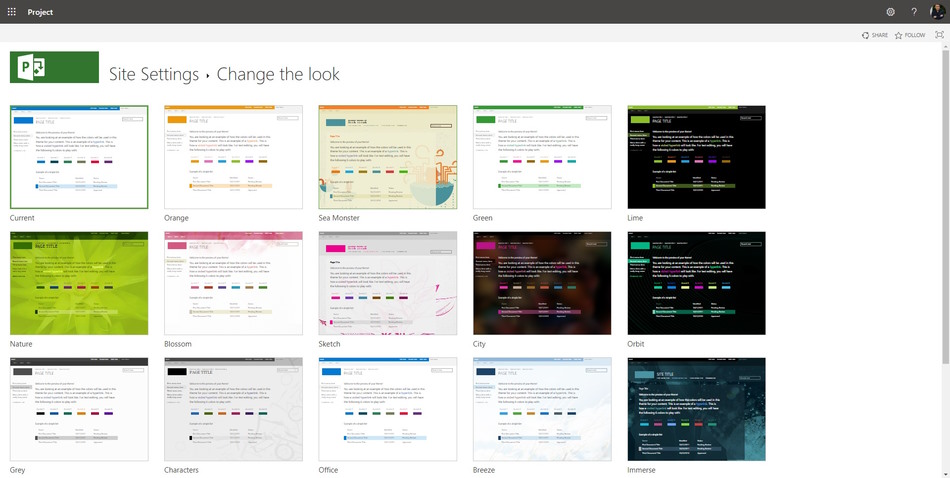
Steps to change the look of a PWA site in MS Project Server:
- Click the "Top link bar" item in the "Look and Fee" block.
- Select the look and click it.
Changing the name, description and logo of a PWA site in MS Project Server
Steps to change the PWA site name, description and logo in MS Project Server:
- Click the "Title, description, and logo" item in the "Look and Fee" block.
- Enter the site name in the "Title:" field.
- Enter the site description in the "Description:" field.
- To change the PWA site logo, click the "FROM COMPUTER" button and select a picture from your computer.
- Click the "Ok" button.

#msprojectserver, #oberemokii, #projectmanagment, #projectintegrationmanagement, #initiatingprocess

Author: Ivan Oberemok
