
Customize Quick Launch in MS Project Server
Contents:
- Customize Quick Launch in MS Project Server
- Adding PWA site links in the top menu in MS Project Server
- Changing PWA site links in the top menu in MS Project Server
- Chat
Customize Quick Launch in MS Project Server
You can change PWA site links in the left menu in MS Project Server.
Steps to change PWA site links in the left menu in MS Project Server:
- Click the "EDIT LINKS" item in the left menu.
- To show or hide a menu item, click on the box asking for it.
- To move an item up select the it and click the "Move Up" button.
- To move an item down select the it and click the "Move Down" button.
- To delete an item select it and click the "Delete Link" button.
- To close without changing, click the "Close" button.
- To close with saving, click the "Save & Close" button.

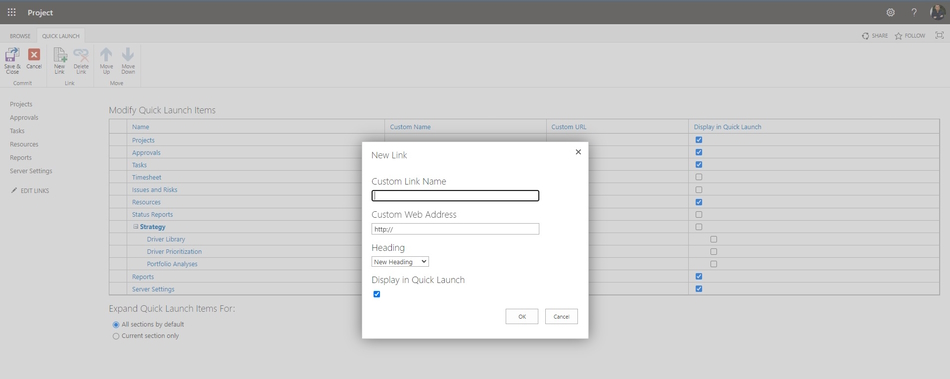
Steps to add a link in the left menu in MS Project Server:
- Click the "New Link" button in the top menu.
- Enter a link name in the "Custom Link Name" field.
- Enter a link in the "Custom Web Address" field.
- To show a link as a second level link, select the top link in the "Heading" field.
- To show link in the quick launch, click the "Display Quick Launch" box.
- Click the "Ok" button.
Adding PWA site links in the top menu in MS Project Server
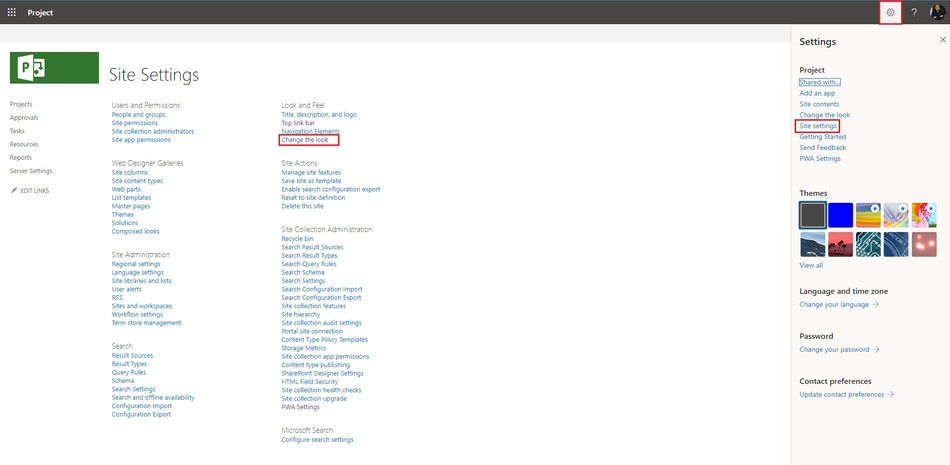
Steps to change PWA site links in the top menu in MS Project Server:
- Click the "Setting" button.
- Click the "Site settings" item.
- Click the "Top link bar" item in the "Look and Fee" block.
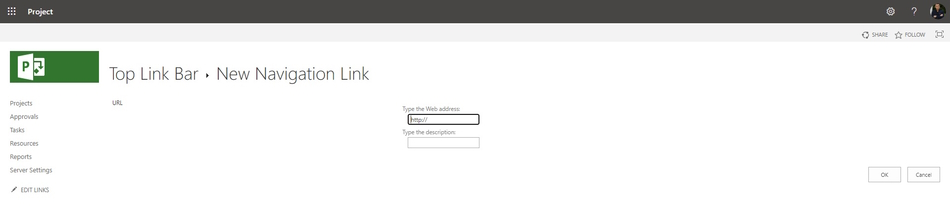
Steps to add PWA site link in the top menu in MS Project Server:
- Click the "New Navigation Link" item.
- Enter a link address in the "Type the Web adress:" field.
- Enter a link name in the "Type the description:" field.
- Click the "Ok" button.
Changing PWA site links in the top menu in MS Project Server
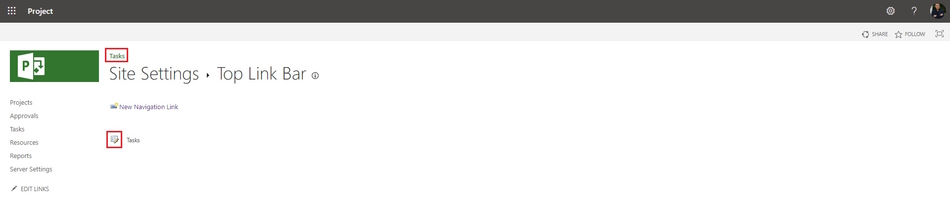
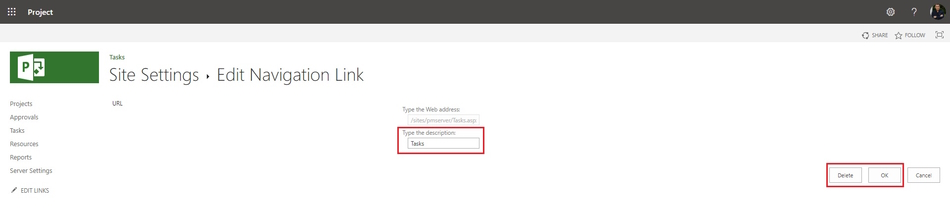
Steps to edit PWA site link in the top menu in MS Project Server:
- Click the "Edit" button near the link name.
- Edit a link name in the "Type the description:" field.
- To delete a link, click the "Delete" button.
- Click the "Ok" button.
#msprojectserver, #oberemokii, #projectmanagment, #projectintegrationmanagement, #initiatingprocess

Author: Ivan Oberemok
