
Tasks type in MS Project Pro
Contents:
- Tasks type in MS Project Pro
- Setting the task type in MS Project Pro
- Setting the default task type in MS Project Pro
- Chat
Task type in MS Project Pro
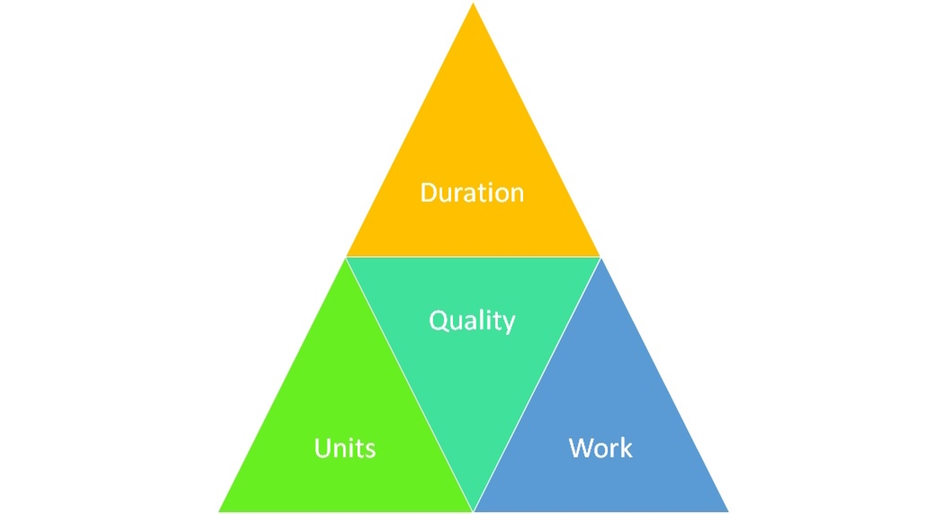
MS Project Pro has a tool to help you plan tasks and assign resources. The system has a relationship between the duration, work and resources units. Changing the value of one parameter changes the values of others.
Example:
- Duration = 5 days. Duration = Work / Units
- Units = 1 resource * 8 hrs (work hours to day). Units = Work / Duration
- Work = 40 hrs. Work = Duration * Units
The task type is determined by the project manager based on the characteristics of the task.
Tasks type in MS Project Pro:
- Fixed Work. You exactly know task work, but the resources units and the duration of the task need to be clarified.
- Fixed Units. You exactly know resources units, but the task work and the duration of the task need to be clarified.
- Fixed Duration. You exactly know the task duration, but the task work and the resources units need to be clarified.
Setting the task type in MS Project Pro
In addition to setting the task type, you can separately fix the task work (the "Effort Driven" column). When rescheduling the task duration or resources units, the MS Project Pro will do this without going beyond the calculated or specified task work.
First tool. Steps to set the task type in MS Project Pro.
- Open the Gantt chart view.
- Add columns: "Type" and "Effort Driven".
- Select tasks types in the "Type" column.
- If the want to fix the task work, set the "Yes" in the "Effort Driven" column.
- When you change the task parameters, MS Project Pro will prompt you to select the task parameter to change. You can open the selection window by clicking on the green triangle at the top of the cell.

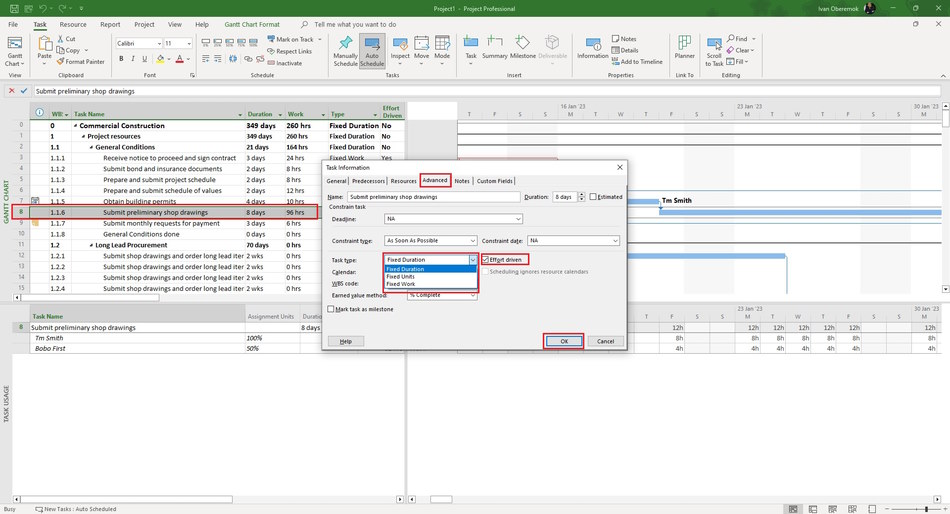
Second tool. Steps to set the task type in MS Project Pro.
- Open the Gantt chart view.
- Duble-click the task.
- Click the "Advanced" tub.
- Select the task type in the "Task type:" field.
- If the want to fix the task work, click the "Effort Driven" box.
- Click the "Ok" button.
Setting the default task type in MS Project Pro
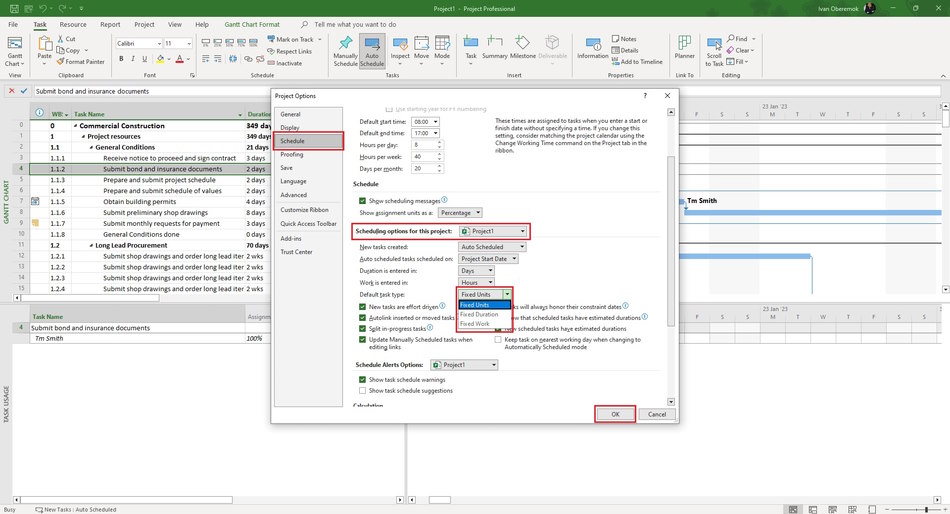
Steps to set the default task type in MS Project Pro:
- Click the "File" item in the top menu.
- Click the "Options" item in the top menu.
- Click the "Schedule" item in the left menu of the window.
- You can select the project name in the "Scheduling options for this project:" field.
- Select the default task type in the "Default task type" field.
- Click the "Ok" button.

Author: Ivan Oberemok
